How to use the SoundGuide dashboard at soundguide.hubbub.space, page by page.
The chapters follow the dashboard's sidebar, one per menu item: what the page is for, what can be done on it, and what every field and button means. The lists that most menu items open share their controls, which are described once, under Working with lists at the end.
Monitoring
The sound-level dashboard: a list of widgets, each showing one or more SoundGuides over a period, as a chart, a heatmap, or a table.
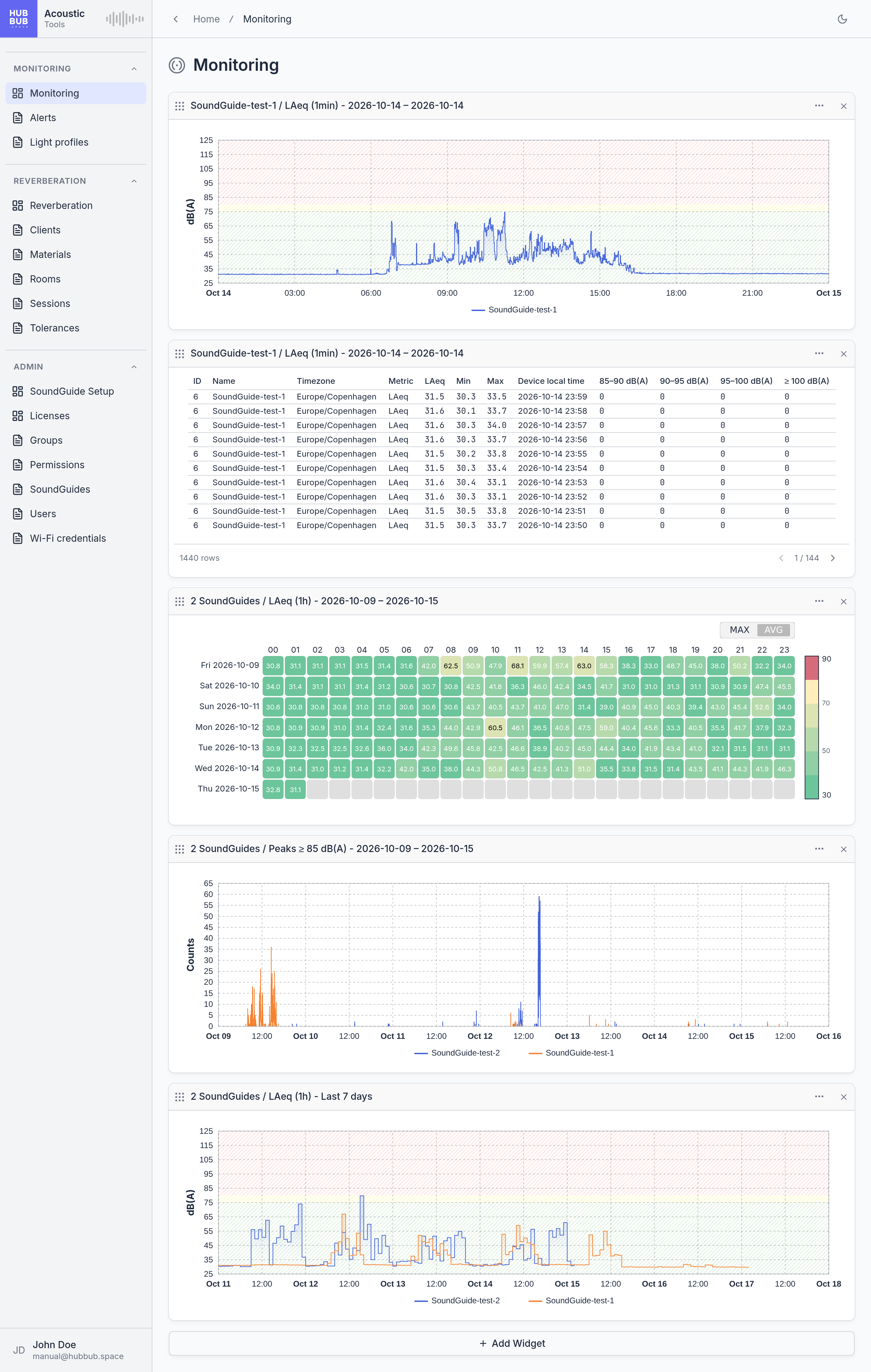
The layout is personal: adding, removing, or reordering widgets changes only the current user's Monitoring page, nobody else's. A new account starts with an empty page and an Add Widget button.
The three kinds of widget
Every widget has the same frame: a drag handle, a title that spells out what it shows, a … menu with options and downloads, and an × that removes it. What differs is the content.
Chart
Sound level over time, as one line per SoundGuide and metric. The coloured bands behind the line are the zones of the device's light profile: green below the yellow threshold, yellow between the thresholds, red above the red threshold, so it is visible at a glance when the room was too loud. A chart can show several metrics at once, for example LAeq and LAFmax.
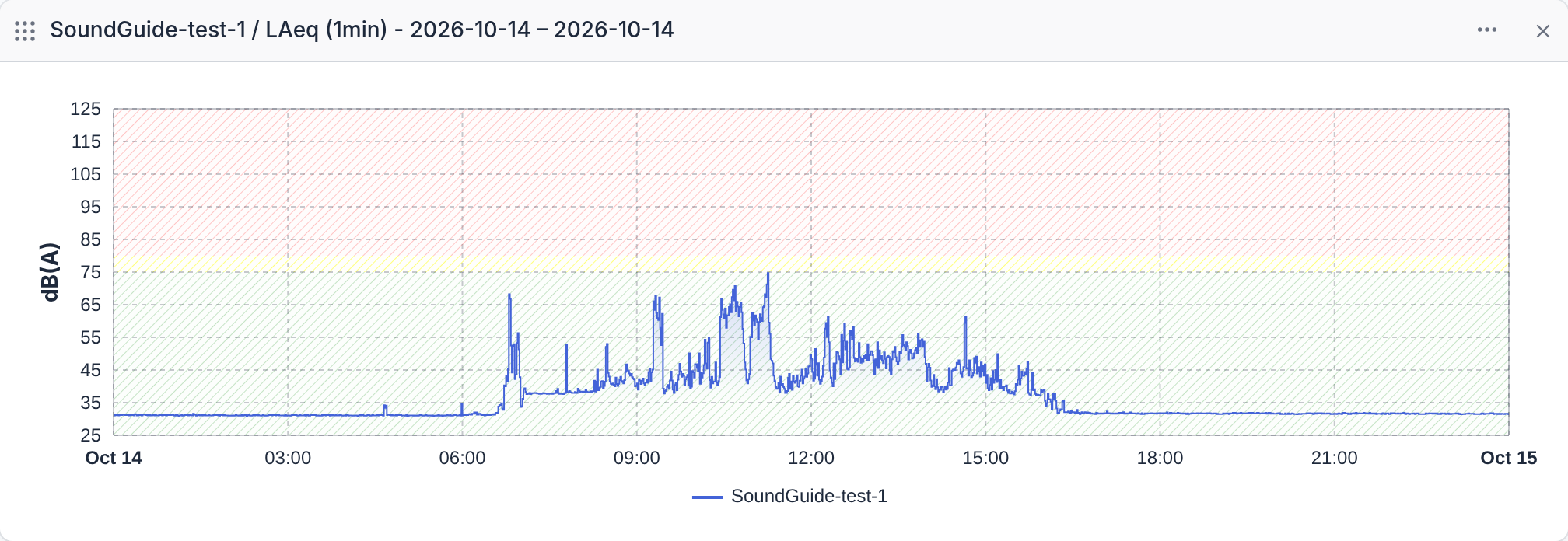
- Zoom: drag horizontally across the chart to zoom into that span. Double-click to zoom back out.
- Pan: drag with the right mouse button while zoomed in.
- Tooltip: switch it on in the widget menu to read exact values under the mouse pointer.
- Legend: below the chart, one entry per line.
Heatmap
One value per hour, laid out as a grid: a row per day, a column per hour, and a colour from green (quiet) to red (loud) according to the scale on the right. It makes patterns obvious: the morning rush, the lunch break, a single day that was loud throughout. For periods of four weeks or more the grid shows one value per day instead.
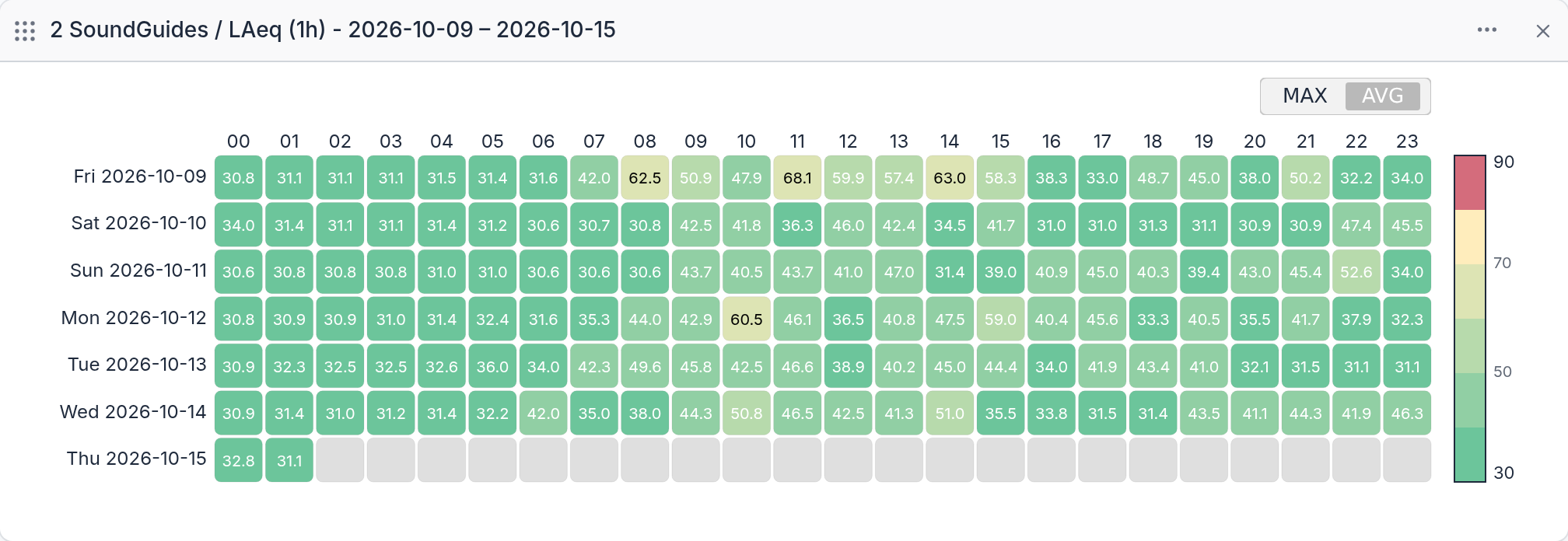
Hover over a cell to read its value. When the widget covers several SoundGuides, a small MAX / AVG switch in the corner decides whether a cell shows the loudest device or the average of them; for count metrics a SUM option is added.
Table
The same measurements as numbers, one row per time unit and SoundGuide, newest first. Each row shows the average (LAeq), minimum, and maximum level, the device's local time, and the peak counts: how many seconds had an LAFmax in each loudness band.
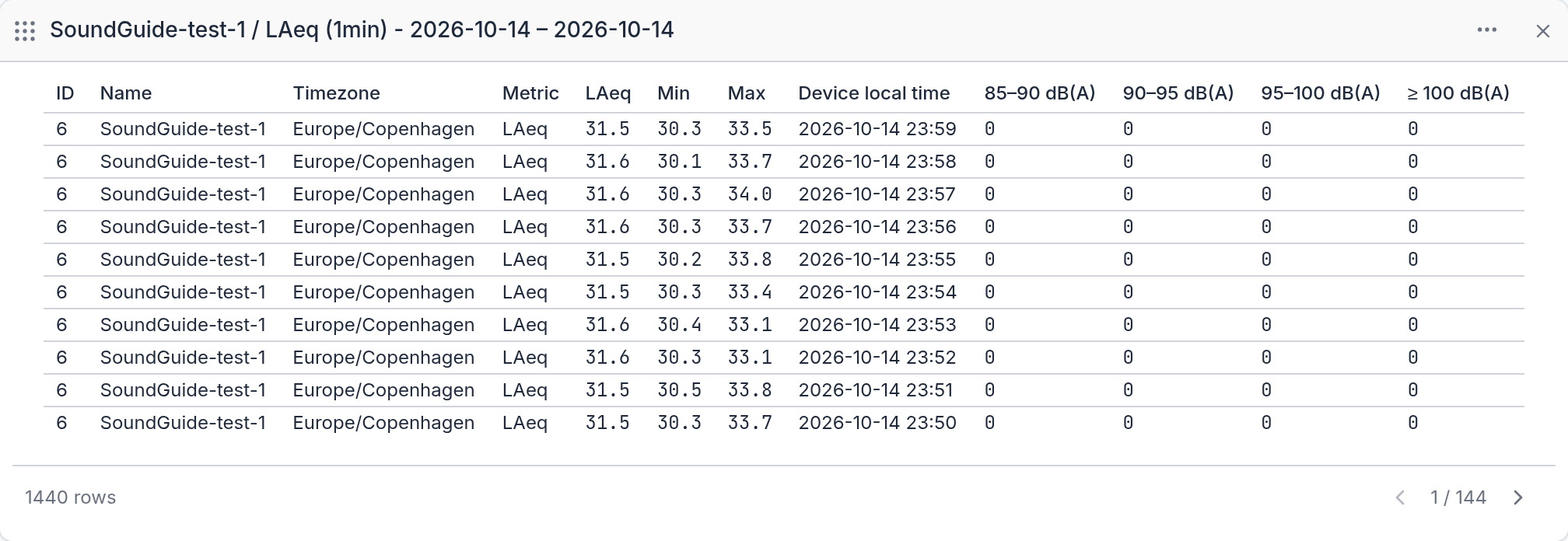
| Column | Meaning |
|---|---|
| ID, Name | The SoundGuide. |
| Timezone | The device's time zone, which all times in the row use. |
| Metric | Always LAeq for sound-level rows. |
| LAeq, Min, Max | Average, lowest, and highest level in the interval, in dB(A). |
| Device local time | Start of the interval. |
| 85–90 dB(A), 90–95 dB(A), 95–100 dB(A), ≥ 100 dB(A) | How many seconds of the interval had an LAFmax in that band. A second counts once, in the highest band its LAFmax reached. |
Adding a widget
- Click Add Widget at the bottom of the page.
- Pick the Kind: Chart, Heatmap, or Table.
- Pick one or more Devices.
- Pick the Period, and for a chart or table the Metrics and the Time Unit.
- Click Add Widget. The new widget appears at the bottom of the page.
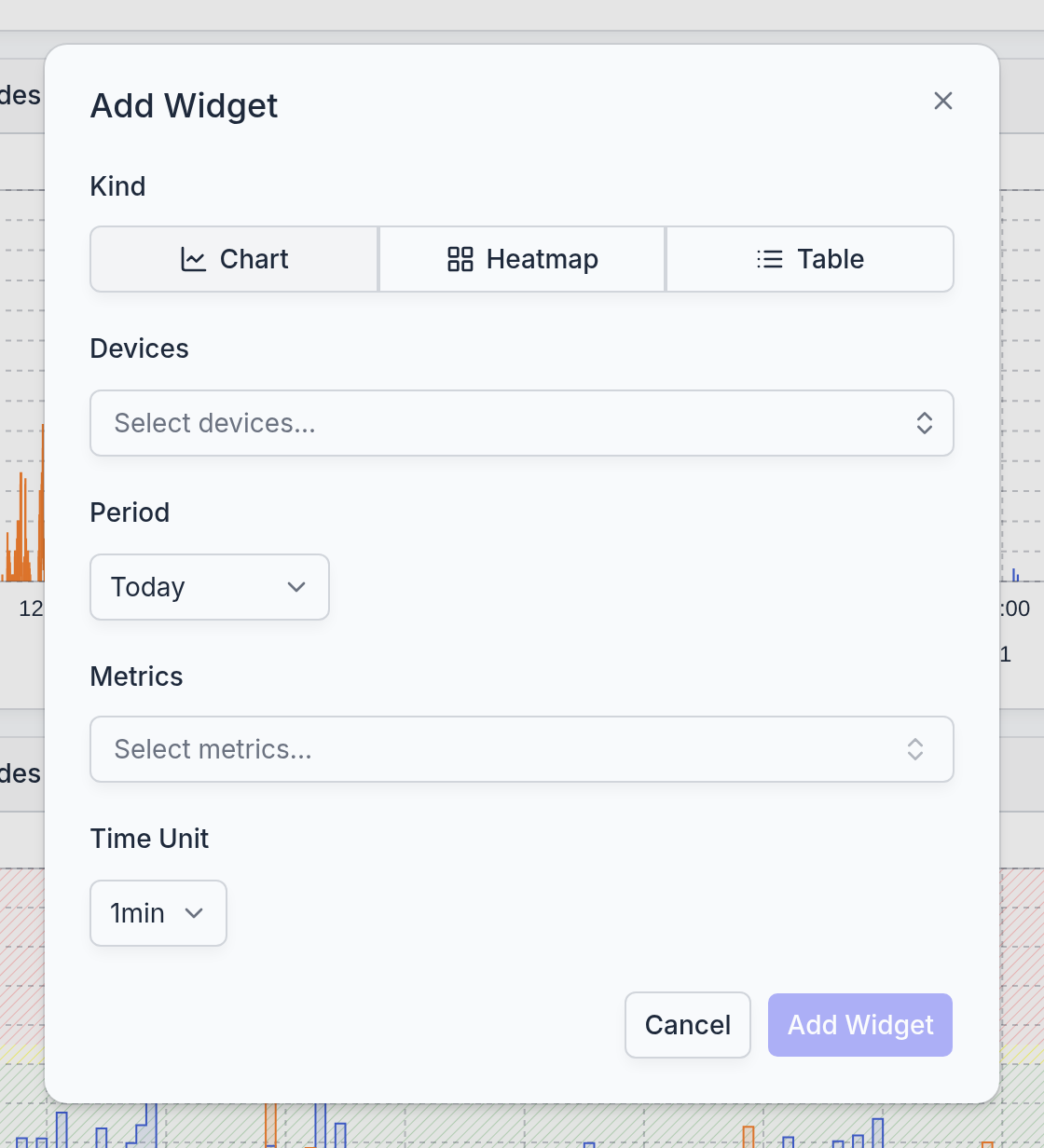
- Kind
- Chart, Heatmap, or Table, as described above.
- Devices
- The SoundGuides to include. Type to search. A device that is disabled, or that has no Monitoring licence, is listed but cannot be chosen, with the reason next to its name: such a device sends no measurements, so a widget over it would stay empty.
- Period
- Today, Yesterday, Last 7 days, Last 30 days, or Custom with a start and end date. Today and the other relative periods move along with the calendar, so a "Today" widget always shows the current day. A heatmap offers Last 7 days and Last 4 to 10 weeks instead.
- Metrics
- What to plot, see the table below. A chart or table can combine several metrics as long as they share a unit: dB(A) levels with dB(A) levels, counts with counts. A heatmap shows exactly one metric.
- Time Unit
- How finely the period is divided: one value per minute, hour, or day. The choice is limited by the length of the period, see below. A heatmap sets it from its period.
| Metric | Unit | What it is |
|---|---|---|
| LAeq | dB(A) | The average sound level over each time unit. The everyday measure of how loud a room is. |
| LAFmax | dB(A) | The loudest moment in each time unit: the highest A-weighted level with the Fast time weighting, which follows the sound with a 125 ms time constant. |
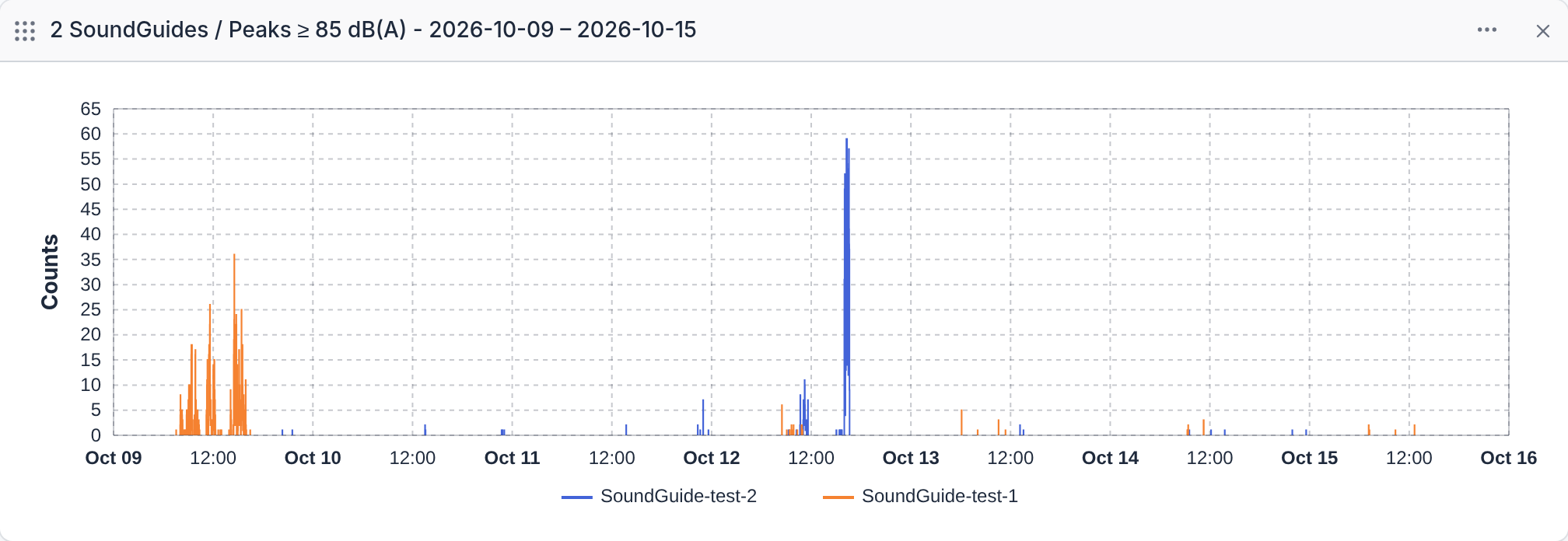
| Peaks ≥ 85 dB(A) | count | How many seconds in each time unit had an LAFmax of 85 dB(A) or more. |
| Peaks 85–90, 90–95, 95–100 dB(A) | count | The same peaks, split by band. |
| Peaks ≥ 100 dB(A) | count | Peaks at 100 dB(A) or more. |
| Number of alarms LAeq, LAFmax | count | How often an alert fired in each time unit, for sustained noise or for sudden peaks. See the Alerts chapter. |
Level metrics draw a line in dB(A) against the zones. Count metrics draw a column per time unit from zero, with no zones: the picture shows how often it became loud rather than how loud it was.
| Time unit | Longest period |
|---|---|
| 1min | 7 days |
| 1h | 31 days |
| 1d | no limit |
The widget's title is composed from these choices, for example Room 12 / LAeq (1min) - Today, or 3 SoundGuides / LAFmax (1h) - Last 7 days when it covers several devices.
The widget menu
The … button in a widget's header opens its menu.
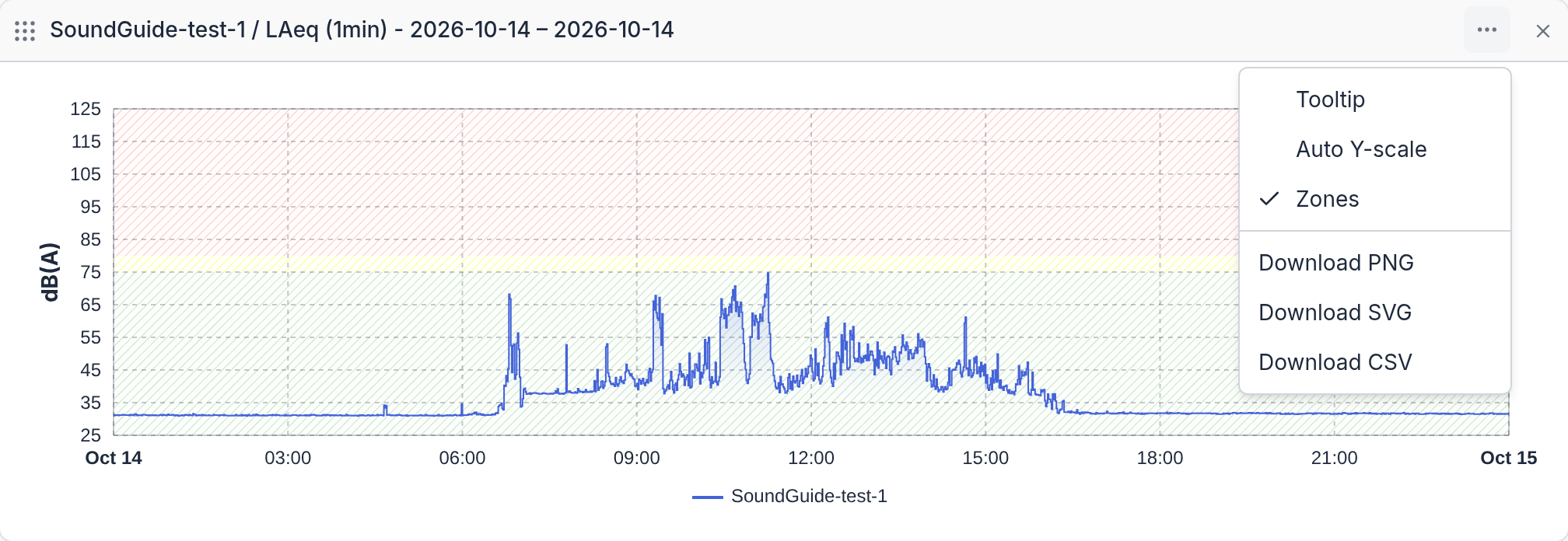
- Tooltip
- Chart only. Shows the exact value under the mouse.
- Auto Y-scale
- Chart only. Fits the vertical axis to the data instead of the fixed 25 to 125 dB(A) range.
- Zones
- Chart only. Shows or hides the green, yellow, and red bands.
- Download PNG, Download SVG
- Chart and heatmap. Saves the picture as it is on screen, for a report or an email.
- Download CSV
- All kinds. Saves the underlying numbers for a spreadsheet. For a table, every row, not only the page on screen.
The three toggles apply until the page is reloaded; the widget itself is saved with its period, devices, and metrics only.
Arranging widgets
- Reorder: drag a widget by the handle at the left of its header and drop it in its new place. The new order is saved.
- Remove: click the × in the header. The widget disappears at once, without a confirmation. To restore it, add it again.
- Change a widget: widgets cannot be edited. Remove it and add a new one with the wanted settings.
Good to know
An empty widget usually means the device has not sent anything for the period: it is offline, switched to another mode, or has no Monitoring licence. A "Today" widget is also empty at the start of the day and fills in as the hours pass.
Times are the device's local time, set by the device's time zone, not the browser's. A SoundGuide in another country shows its own day.
Alerts
An email when a room is too loud: an alert watches one or more SoundGuides for a defined sound level and emails the chosen people when it is exceeded.
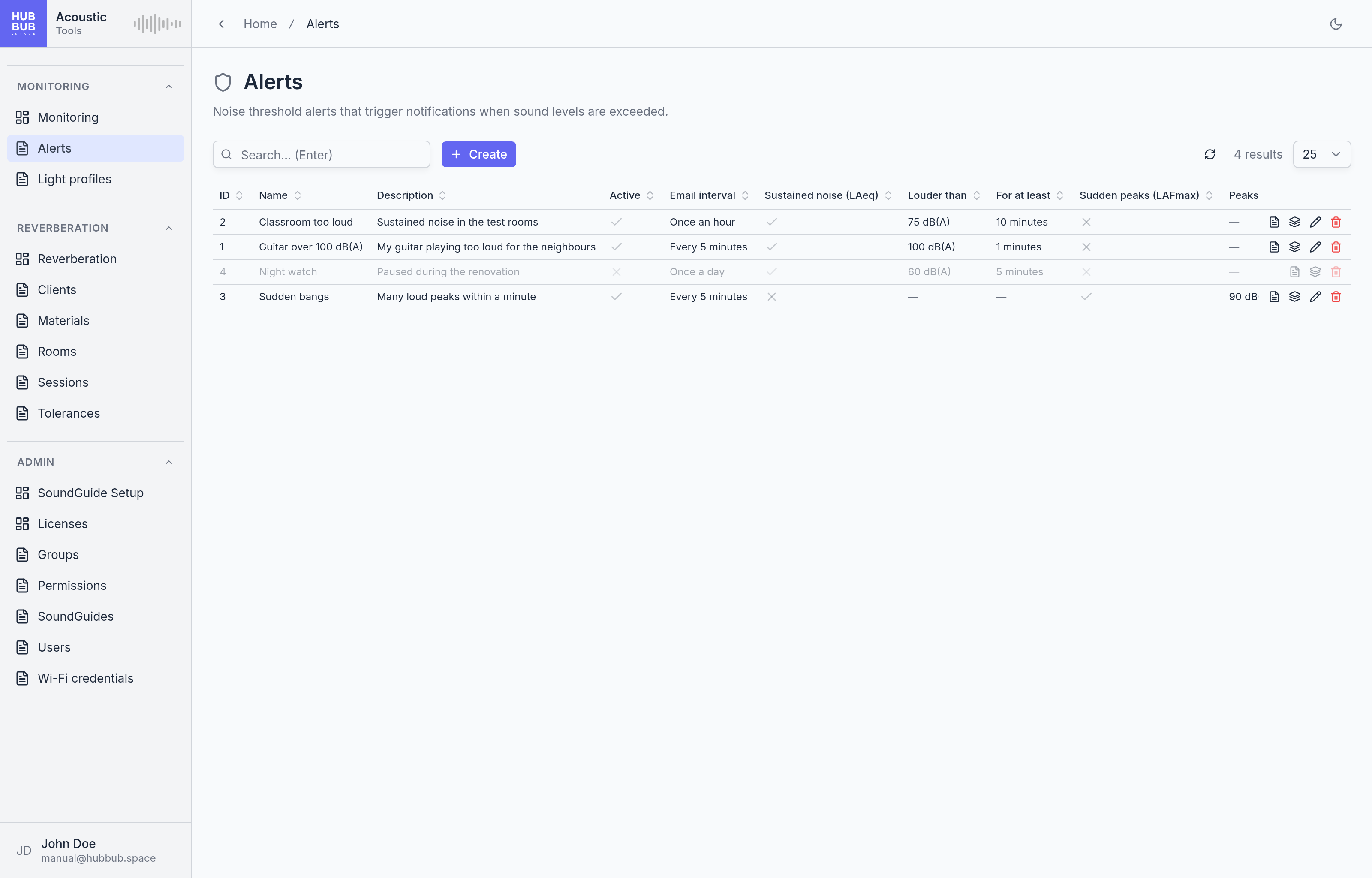
Alerts is a list page. Alerts are shared: everyone in the organisation sees the same list, and anyone whose group may manage alerts can create, change, and delete them.
Two kinds of alert
An alert watches either the average level or the peaks, not both. Make two alerts to be notified about both.
- LAeq, sustained noise
- Fires when the average level of a SoundGuide stays above a set level for a number of minutes in a row, for example above 75 dB(A) for 10 minutes. The check uses the per-minute average, the same LAeq that the Monitoring table shows. This is the alert for a classroom or open office that is too loud for too long.
- LAFmax, sudden peaks
- Fires when, within a single minute, more than a set number of seconds had an LAFmax in a loudness band: 85, 90, 95, or 100 dB(A) and above. These are the same peak counts as the bands in the Monitoring table. This is the alert for slamming doors, shouting, or machinery.
Creating an alert
- Click Create above the table.
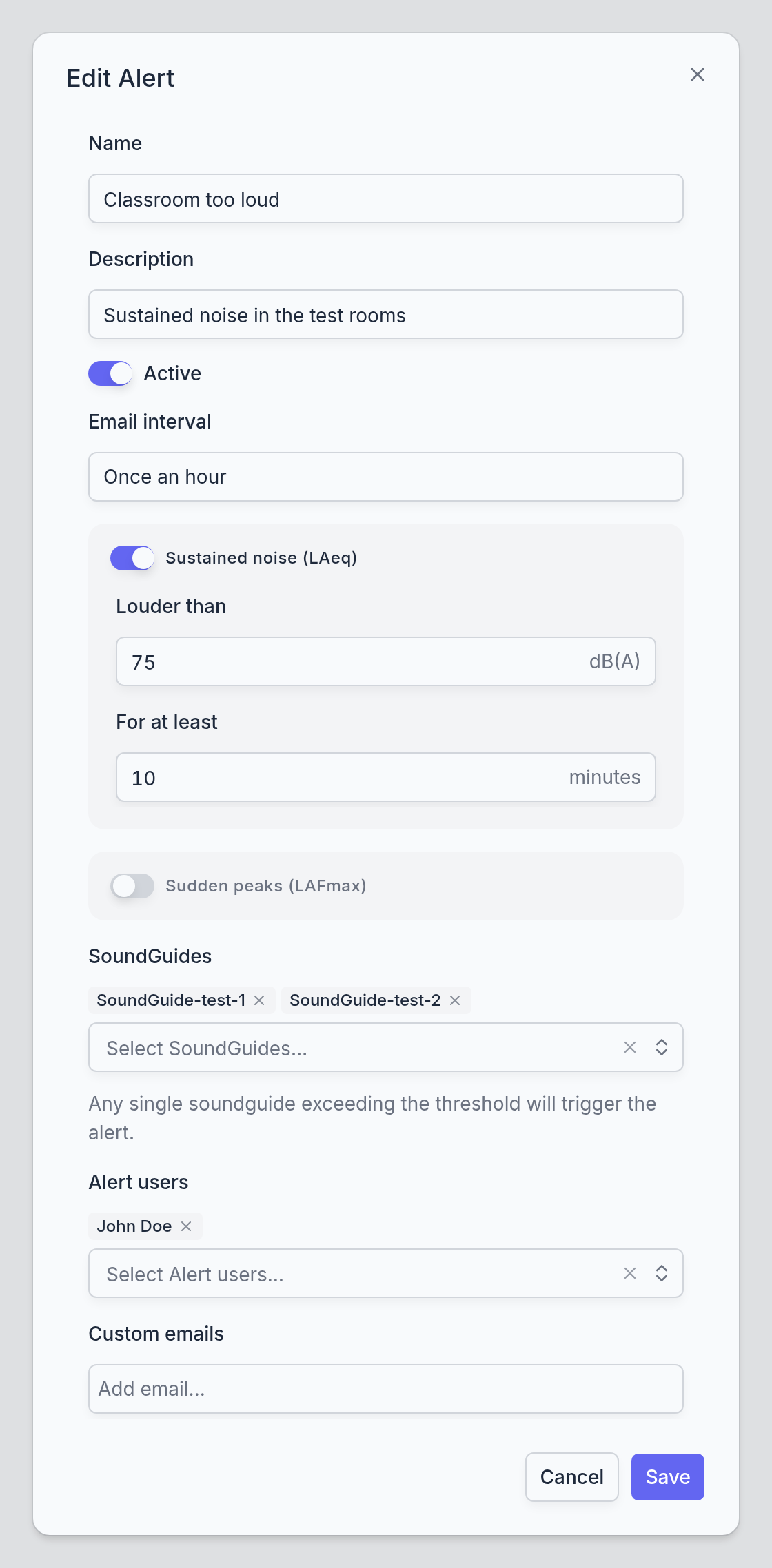
- Give the alert a Name, and optionally a Description.
- Switch on Sustained noise (LAeq) or Sudden peaks (LAFmax) and complete the sentence underneath with the level and the duration.
- Pick the SoundGuides to watch and the people to notify, as Alert users, Custom emails, or both.
- Click Save.
- Name, Description
- The name is the subject of the email ("Sound alert: Classroom too loud") and the first column of the table. The description is for colleagues.
- Active
- Switch an alert off to pause it without deleting it. A paused alert is greyed in the table and sends nothing.
- Email interval
- How often the alert may email at most: Every 5 minutes, Once an hour, or Once a day. A room that stays loud would otherwise send a message every time the condition is met again; the interval keeps it to one. Breaches inside the interval are still recorded, see Related records below.
- Sustained noise (LAeq)
- Switch on for an alert on the average level. The two fields complete the sentence: Louder than is the level in dB(A) the per-minute average must exceed, any whole number from 30 to 130; For at least is how many consecutive minutes it must do so.
- Sudden peaks (LAFmax)
- Switch on for an alert on peaks. Peaks of at least is the band the peaks must reach: 85, 90, 95, or 100 dB(A); More than is how many such seconds a single minute may contain before the alert fires. With 5, the sixth within a minute triggers it.
- SoundGuides
- The devices to watch. Any single one of them exceeding the threshold triggers the alert; the email says which.
- Alert users
- Dashboard users to email. Pick from the organisation's users.
- Custom emails
- Any other addresses, for a caretaker or a shared mailbox. Type an address and press Enter to add it.
What the email says
The subject is Sound alert: followed by the alert's name. The body states the threshold, the SoundGuides the alert watches, and when it was triggered, in the time zone of the device that triggered it. The message comes from a no-reply address.
The alert history
Every breach is recorded, whether or not it led to an email. Click the Related records button on an alert's row to see them. The dialog has a tab for each kind of breach, Alert entry (LAeq) and Alert entry (LAFmax), and lists one row per breach: the SoundGuide that caused it, the time of the breach, and when the notification for it went out. A new alert shows "No data found" until it fires for the first time.
The Monitoring page can chart the same history: the Number of alarms LAeq and Number of alarms LAFmax metrics count these breaches per time unit.
Good to know
Alerts are checked a few minutes behind the clock. Measurements arrive from the device every 20 seconds and are rolled up into minutes before alerts are evaluated, so an email arrives some minutes after the room became loud, not immediately.
Only the last 24 hours are evaluated. A SoundGuide that was offline and uploads older measurements when it reconnects does not raise alerts for them.
Deleting an alert deletes its history and cannot be undone. To stop an alert for a while, switch off Active instead.
Light profiles
What the light ring on a SoundGuide shows: at which levels it turns yellow and red, how bright it is, and whether it behaves differently at night.
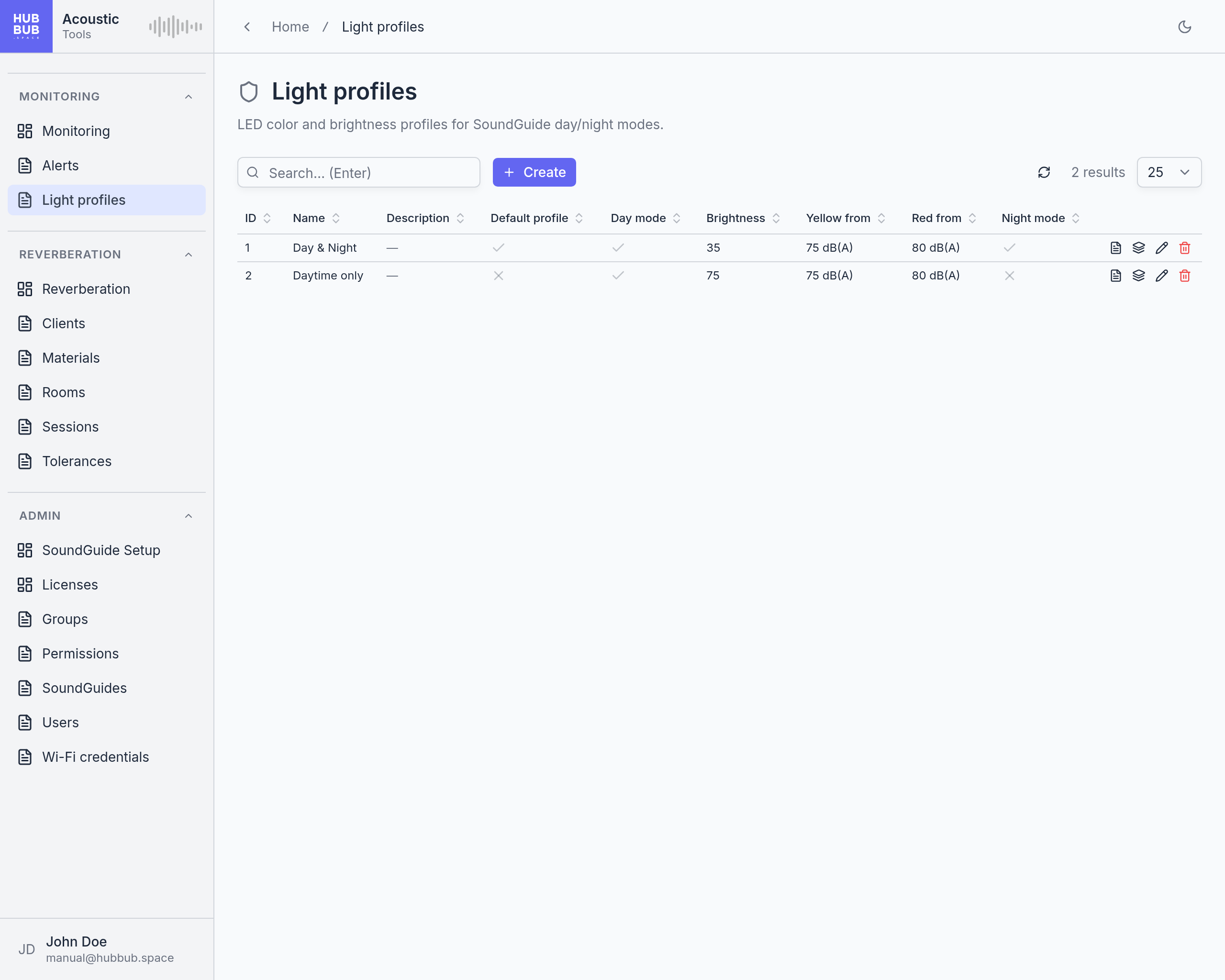
Light profiles is a list page. A profile is a named set of settings that any number of SoundGuides share; each device follows exactly one, chosen in its Light profile field on the SoundGuides page. One profile is the Default profile: a newly registered device starts with it. Changing a profile changes every device that follows it, within about twenty seconds, the next time the device checks in.
How the light works
While a SoundGuide measures, its ring shows the current sound level as a colour: green below the yellow threshold, yellow from the yellow threshold up, red from the red threshold up. The colour follows the level from moment to moment, so a single shout turns the ring red for as long as the shout lasts. The same two thresholds draw the coloured zones behind the charts on the Monitoring page, so the dashboard and the ring agree on what counts as loud.
A profile has two sets of thresholds and brightness, for Day mode and Night mode. Night mode is optional: when it is on, the night settings apply between the two times of day given, in the device's own time zone, and the day settings the rest of the time. When it is off, the day settings apply around the clock. Either mode can also switch the ring off altogether; the device keeps measuring and uploading while the ring stays dark.
Creating or editing a profile
- Click Create, or the pencil on an existing profile.
- Give it a Name, and optionally a Description.
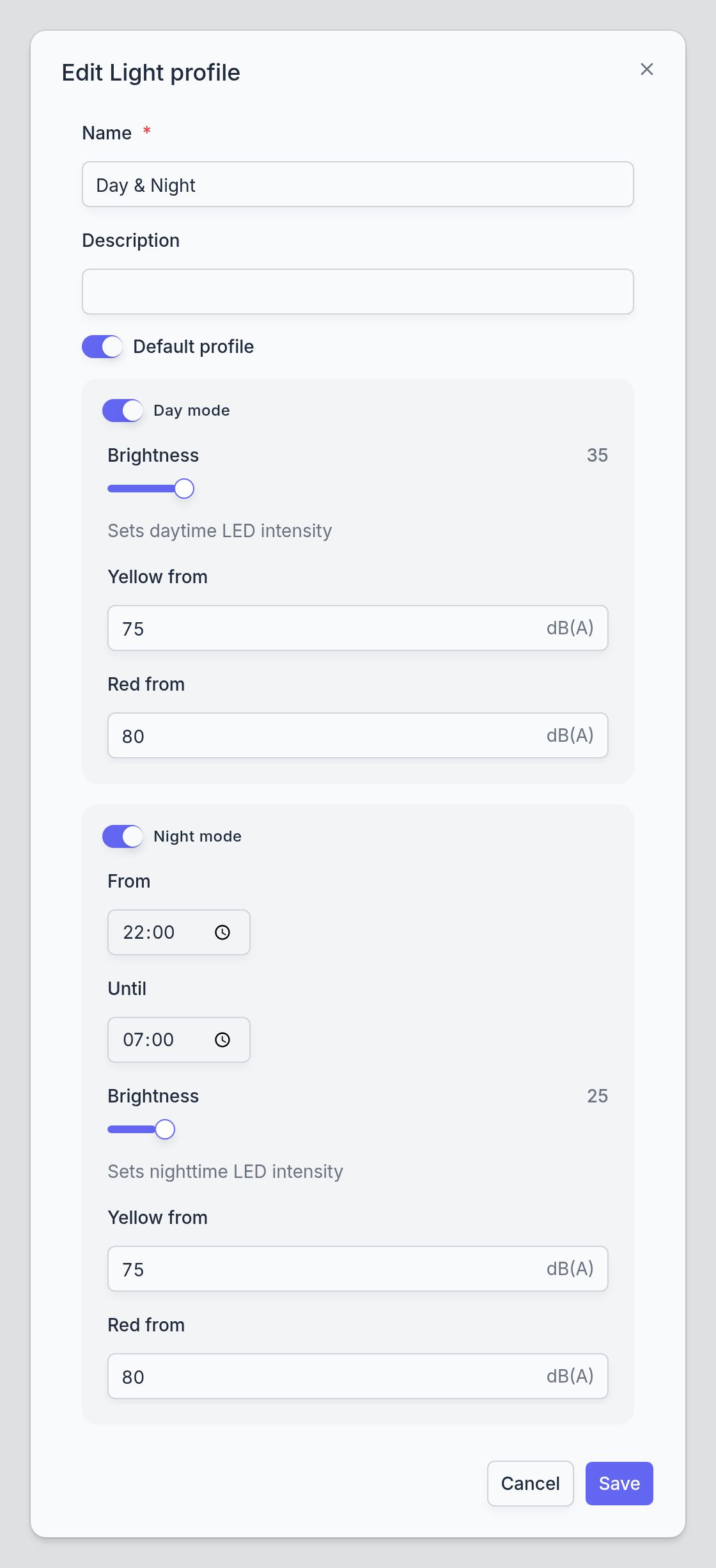
- Switch on Day mode and set the daytime brightness and thresholds. A new profile starts with the ring off.
- For a different behaviour at night, switch on Night mode and set the night hours, brightness, and thresholds.
- Click Save. Devices on the profile apply the change on their own.
- Name, Description
- The name appears in the Light profile field of each SoundGuide, so a name that says where the profile is meant for ("Classrooms", "Open office") helps.
- Default profile
- The profile new devices start with. Exactly one profile is the default: switching it on here switches it off on the previous one, and the default cannot be switched off without choosing another.
- Day mode
- Whether the ring lights up during the day. Off means the ring stays dark; the fields of the card only appear when it is on.
- Brightness
- How bright the ring is, from 0 to 255. Around 25 to 40 suits a lit room; lower values are enough in a dim one.
- Yellow from, Red from
- The levels in dB(A) at which the ring turns yellow and red. Red must not be below yellow. 75 and 80 are the defaults; a quiet office might use 65 and 75, a workshop higher values.
- Night mode
- Whether to use separate night settings at all. Off means the day settings apply around the clock. On reveals the night fields; a night brightness of 0 keeps the ring dark at night while the day settings still apply by day.
- From, Until
- When night mode begins and ends, as times of day in the device's time zone. The range may cross midnight, for example 22:00 to 07:00.
- Brightness, Yellow from, Red from
- The same three settings, for the night hours. The table lists only the day settings and whether night mode is on; the night values are in the dialog and in View details.
Which devices use a profile
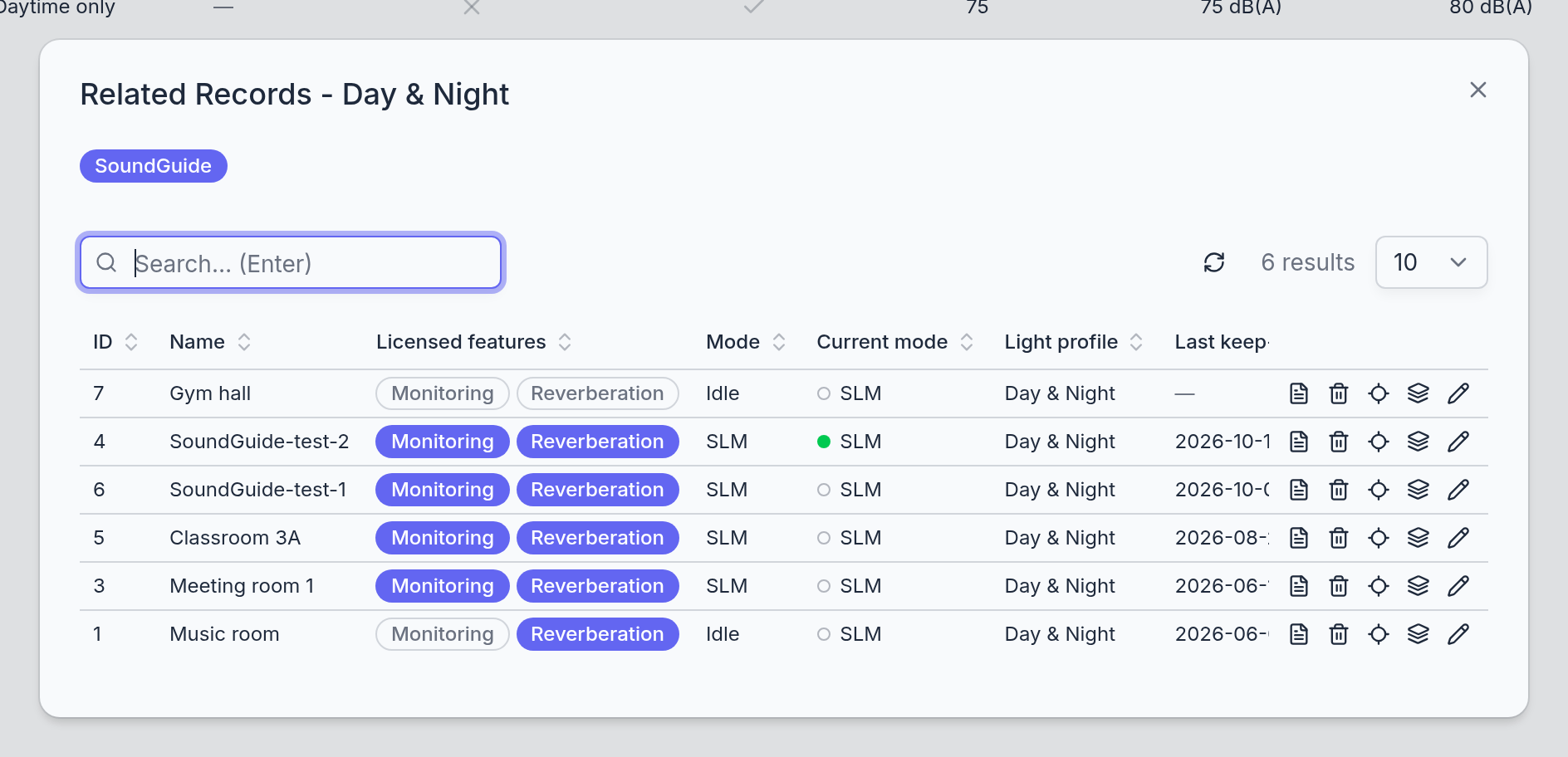
The Related records button on a profile lists the SoundGuides that follow it. The list is the same as the SoundGuides page, filtered to this profile, so a device's profile can be changed from here too.
Good to know
A profile cannot be deleted while devices follow it. Move them to another profile first, on the SoundGuides page or through Related records.
The colours themselves are fixed: green, orange-yellow, and red. A profile sets when they show and how bright, not which colours are used.
Reverberation
Measure how long sound lingers in a room, compare measurements before and after an acoustic treatment, and predict what a treatment would do before buying it.
What is measured
The reverberation time, RT60, is how long it takes a sound to fade by 60 dB after it stops. A SoundGuide measures it from an impulse: a bursting balloon or paper bag, or a starter pistol in very large rooms. It listens for the impulse, records the decay that follows, and reports a time for each of eight frequency bands from 63 Hz to 8 kHz. Each impulse is one measurement; the average of several is the result for the room.
The page organises measurements in three levels:
- Session
- Everything measured in one room for one purpose, such as a before-and-after comparison of a treatment. A session is identified by its room and the moment it was created.
- Series
- One named run of one SoundGuide inside a session: "before treatment", "after 20 m² of panels". Starting a series arms the device, every measurement until Stop is filed into it, and once stopped it is frozen. More measurements later mean a new series, so the numbers of a finished series never change.
- Measurement
- One impulse, with its eight band values. A band the device could not evaluate is shown as a dash. The 63 Hz value is very uncertain, see Getting a good measurement.
Setting up: client and room
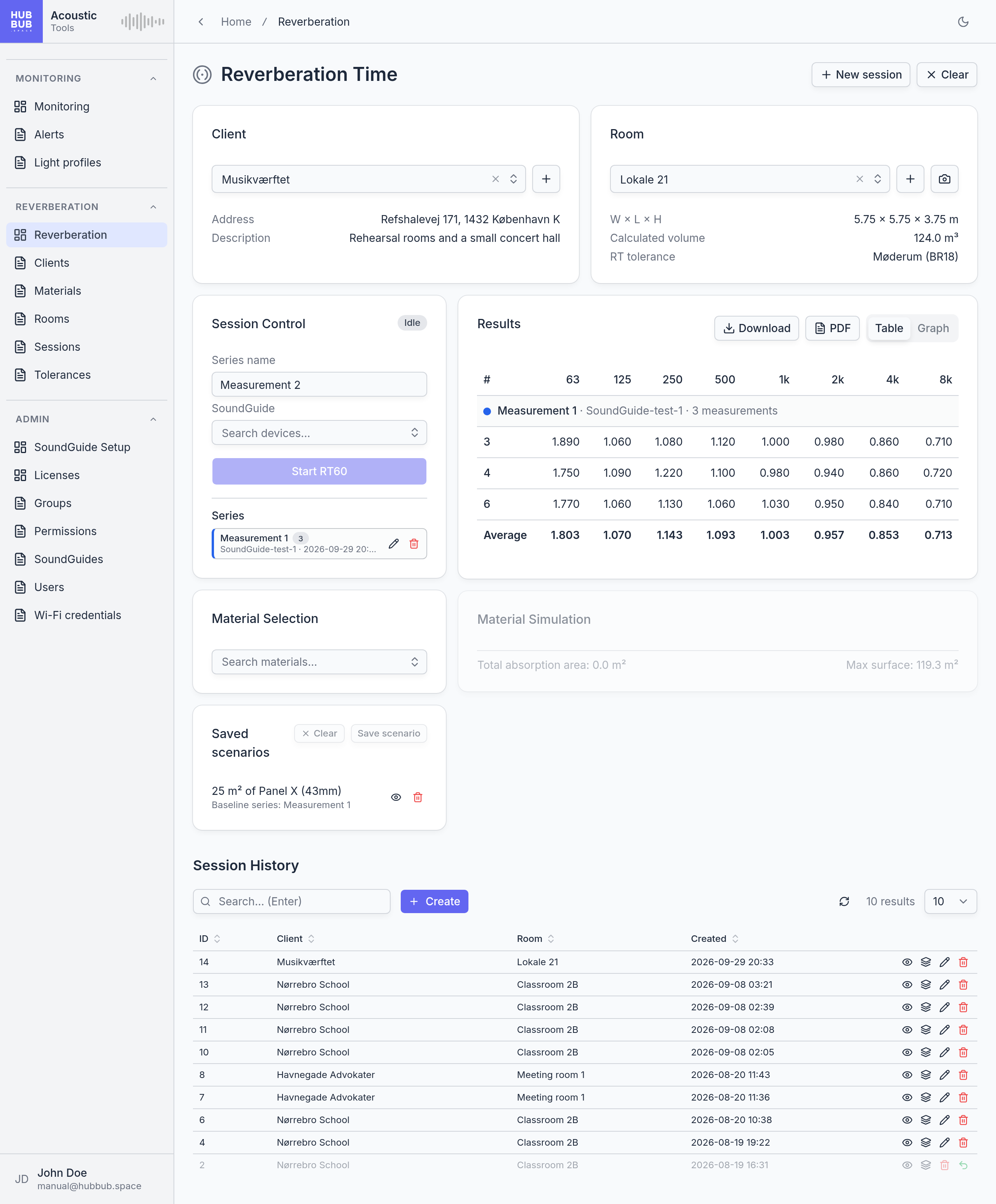
The two cards at the top choose where the measurement takes place. A Client is the organisation the room belongs to; a Room has dimensions, which the simulation needs, and may have a tolerance and a photo. Both are searchable lists; the + button next to each creates a new one without leaving the page, and the camera button on the room card attaches a photo. Below the chosen room its description, size, volume, tolerance, and photo are listed. The Clients and Rooms chapters describe the records themselves.
The page remembers the chosen client, room, and session in the browser, so a later visit opens the same room.
Measuring
- Choose the client and the room.
- In Session Control, type a Series name or keep the suggested one, and pick the SoundGuide placed in the room. Only a device with a Reverberation licence can be chosen.
- Click Start RT60. The status goes to Arming... while the device switches over, then Ready — make a noise. If no session was chosen, one is created at this point.
- Pop a balloon a few metres from the device; see Getting a good measurement below. Each impulse appears in the Results within a few seconds. Repeat for as many measurements as wanted; three to five give a reliable average.
- Click Stop RT60. The series is closed and the device returns to its normal mode. For another run in the same room, name the next series and start again.
While a series runs, the ring on the SoundGuide shows what it hears: red while listening, yellow when it has caught an impulse and records the decay, purple while it analyses, then a flash when the measurement is complete. A sound that was too quiet to count gives a short yellow blink; a louder impulse is needed.
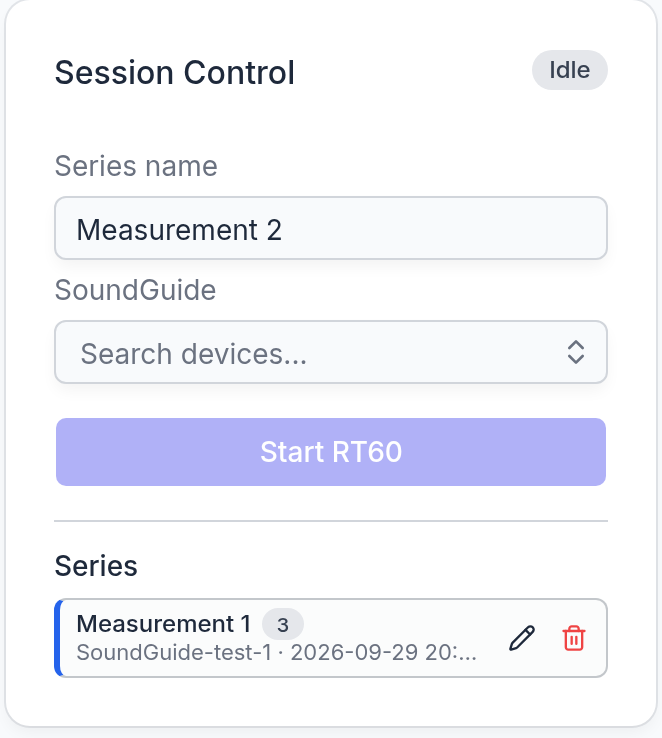
The series of the session are listed under the controls, each with its colour (the same as its curve in the graph), the number of measurements, the device, and the start time. When nothing is running a series can be renamed with the pencil button or deleted with the delete button. A series that was stopped without a single measurement is dropped automatically, and so is a session that was created for it with nothing else in it.
New session, at the top of the page, leaves the current session so that the next Start opens a fresh one in the same room. Clear clears the client, room, session, and device.
Getting a good measurement
The device does the analysis; the quality of the result depends on where it stands, what makes the impulse, and how quiet the room is.
- Placing the SoundGuide
- On a tripod, standing freely in the room: at least 1 m from walls, windows, and large furniture, about 1.2 to 1.5 m above the floor, and not in the exact centre of the room, where some frequencies cancel or pile up. A room is not the same everywhere; for a complete picture, repeat the series with the device in a second or third spot.
- The impulse
- A balloon is the standard source. A party balloon of 25 to 30 cm is enough for a meeting room or classroom; a larger balloon of 40 to 60 cm for a hall, gym, or canteen, since a small bang does not carry far enough down into the low bands. A brown paper bag, inflated and burst, works the same way. Only in very large rooms, such as a sports hall or a church, is a starter pistol needed; hearing protection is a must there. Do not use hand claps or shouting: they are too weak and too uneven for a reliable reading.
- Distance
- Pop the balloon at least 2 m from the SoundGuide, and in a large room further away, 4 to 5 m. Closer than that, the bang itself dominates the recording instead of the room's reverberation. Keep the balloon at least 1 m from walls too, and hold it at roughly the device's height. Move to a different place for each pop so that the readings sample the room rather than one spot.
- Quiet
- The device follows the sound down to silence, so background noise shortens or spoils the result, most of all in the low bands. Close doors and windows, switch off ventilation or machinery where possible, and have everyone stand still and silent from the pop until the device has flashed its result, four to five seconds later.
- How many
- Three to five pops per device position. Wait for the flash before the next pop; a pop during the analysis is lost. A weak pop gives a short yellow blink instead of a result and is simply repeated with a louder one.
- The room as it is used
- Measure with the room furnished as normal and empty of people: an audience absorbs sound and makes a room seem deader than it is. For a before-and-after comparison, keep everything else the same between the two series: furniture, curtains, device position, and the places the balloons are popped.
The 63 Hz band is very uncertain: a balloon produces little energy that low, so the decay there is faint and easily buried in background noise, and single readings can differ from each other by a second or more. The 8 kHz band is the least reliable at the other end. The tolerances cover neither, and the graph shows 125 Hz to 4 kHz, which is where a room is judged; the two outer bands appear in the table only.
Results
The Results card shows every series of the session, as a Table or a Graph.
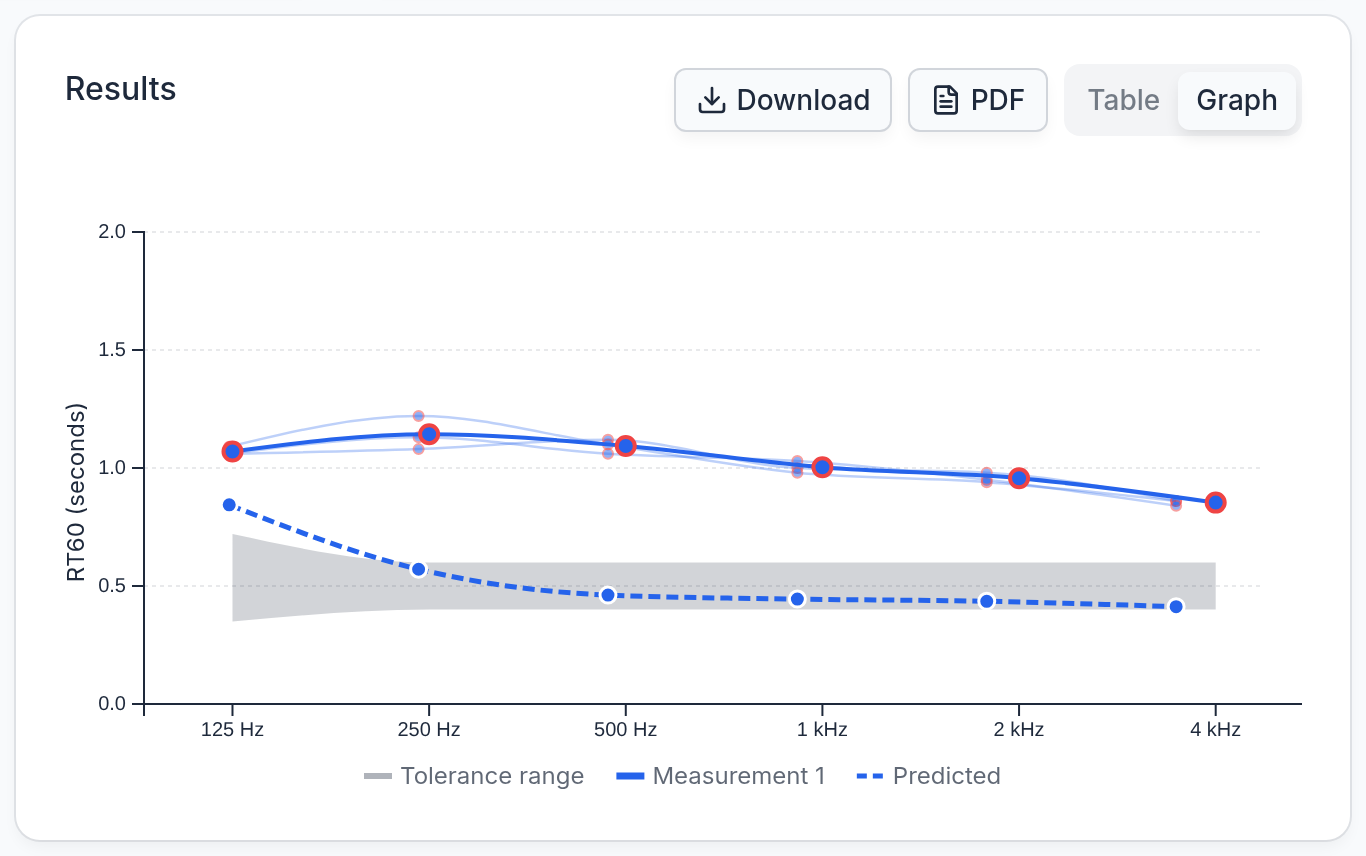
- Table: one block per series with a row per measurement and, from two measurements on, an Average row. Values are seconds.
- Graph: one curve per series through its averages, in the series' colour. The individual measurements are drawn faintly behind the average. If the room has a tolerance, its band is shaded and averages outside it are ringed in red. A simulation adds a dashed predicted curve.
- Download: the graph as PNG or SVG, or the numbers as CSV with the client, room, and session noted.
- PDF: a report of the whole session: the comparison graph and table, one page per series with its measurements and tolerance check, and every saved scenario.
Simulating a treatment
Once a room has a measurement, the page can predict what adding absorbing material would do. The prediction uses Sabine's formula: the measured time and the room's volume give the absorption the room already has; the chosen materials add theirs, square metre by square metre, according to their absorption coefficients per band; the predicted time follows. It can only go down, since material is only ever added.
- In Material Selection, pick one or more materials. The list holds the shared catalogue and the organisation's own materials, marked Mine; see Materials.
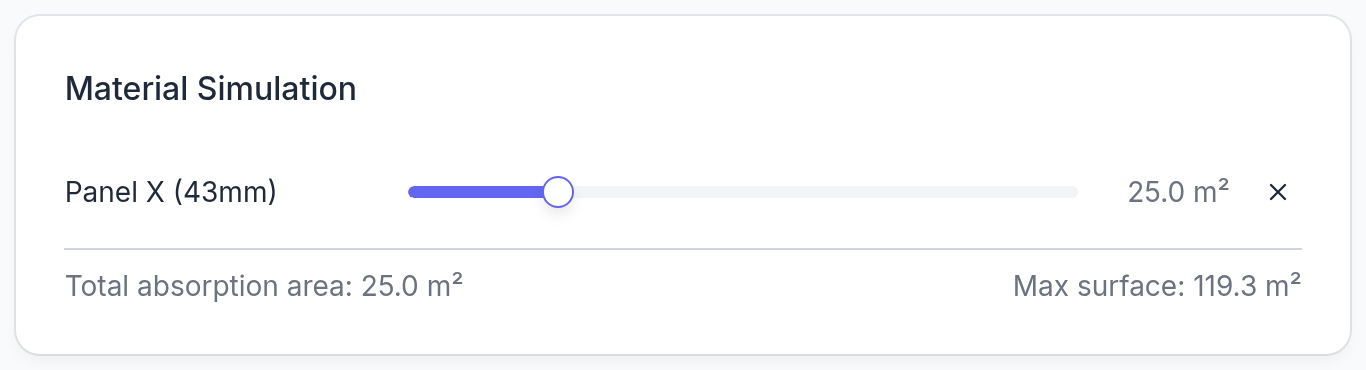
- In Material Simulation, set the area of each material with its slider. The areas are limited together by Max surface, the room's ceiling and walls. The dashed prediction in the graph follows the sliders.
- When the session has several series, choose which one the prediction starts from in the Baseline series list in the card's corner, for example the measurement before the treatment.
- Click Save scenario to keep the combination. Scenarios are named after their contents, such as "20 m² of Panel X (25mm)", and listed under Saved scenarios with their baseline. The eye button loads one back into the sliders, the delete button removes it, and Clear empties the simulation without touching the saved scenario.
Saved scenarios are part of the session: they appear in the PDF report and can be opened again whenever the session is loaded.
Earlier sessions
Session History, at the bottom, lists every session of the organisation as a list page. The eye on a row loads it into the page, with its client and room; the other buttons are those of the Sessions chapter. A session that was deleted is greyed and can be restored from there.
Good to know
A device runs one series at a time. Starting a series on a SoundGuide that is already measuring closes its earlier series. A series left running is closed automatically after three hours. If the page is opened while a device is still measuring, it resumes that series and shows it as running.
A SoundGuide needs a Reverberation licence to measure. Devices without one are listed greyed, with the reason next to the name. Licences are assigned on the Licenses page.
Deleting a series deletes its measurements. The first delete only marks them, and the Sessions page can restore them; deleting again there removes them for good.
Clients
The organisations whose rooms are measured: a client is the top of the reverberation records, with its rooms below it and the sessions measured in those rooms below them.
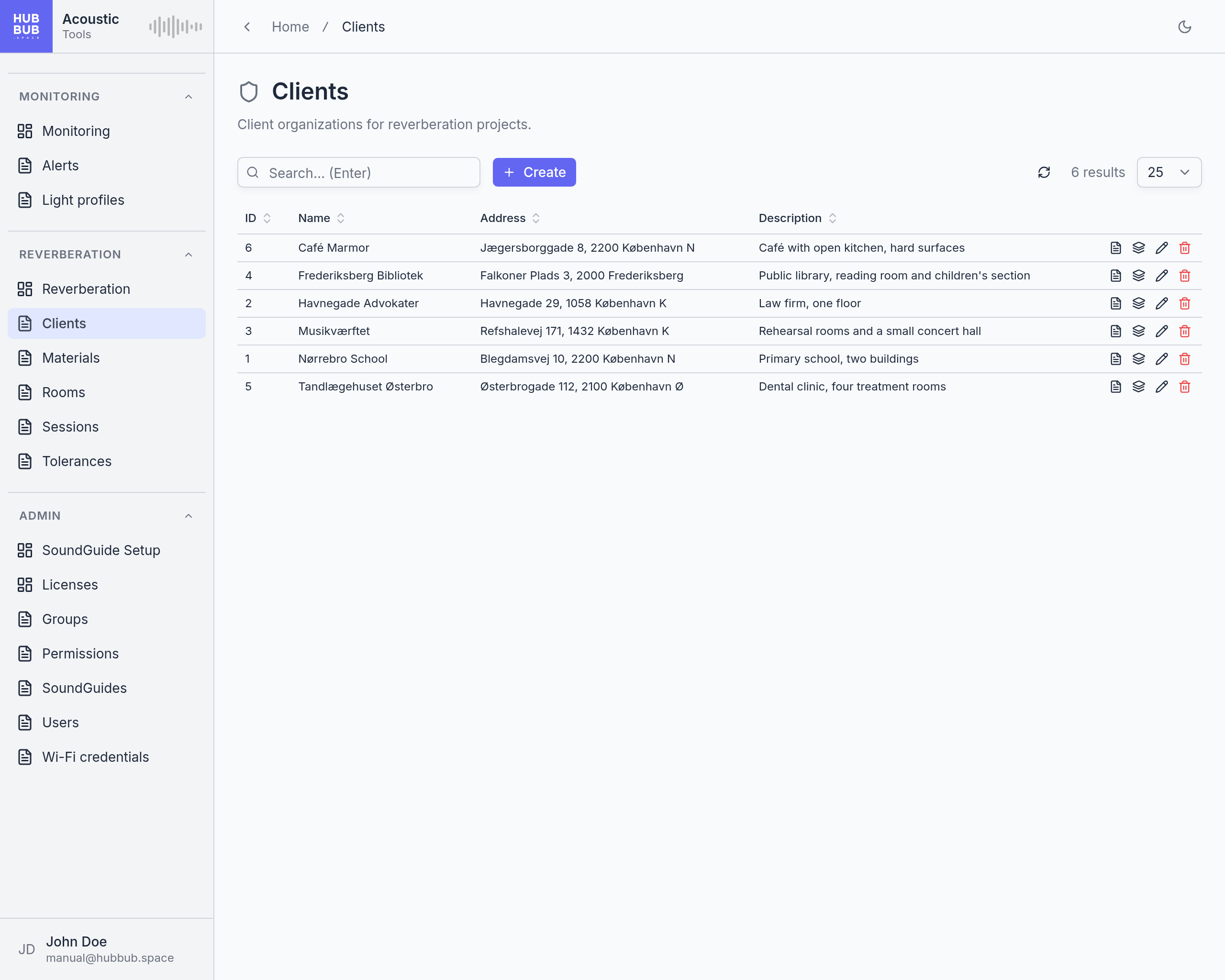
Clients is a list page. For an acoustics consultancy a client is a customer; for a school district or a company measuring its own premises, a client is a site or a department. Clients are only used by the reverberation feature: every room belongs to one, and the Reverberation page starts by choosing a client and then one of its rooms.
Creating or editing a client
- Click Create, or the pencil on an existing client. The + button next to the client list on the Reverberation page opens the same dialog.
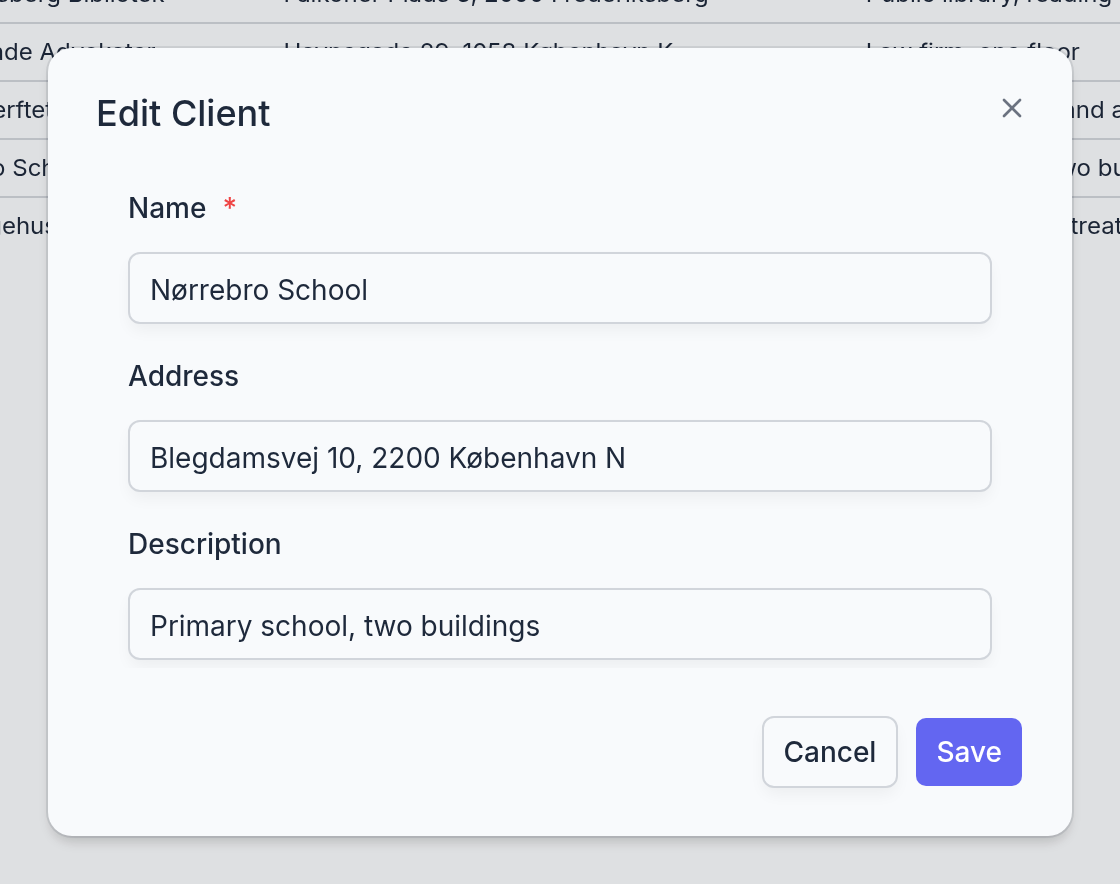
- Give it a Name, and optionally an Address and a Description.
- Click Save.
- Name
- The only required field. It appears in the client list on the Reverberation page, in the room and session tables, and on the PDF report, so the name the organisation is known by is the right choice.
- Address
- Where the client is. Free text; a street address is the usual content, but a site or building name serves as well.
- Description
- A note for colleagues: what kind of building it is, how many floors, who the contact is. Shown in the table and in View details, nowhere else.
A client's rooms and sessions
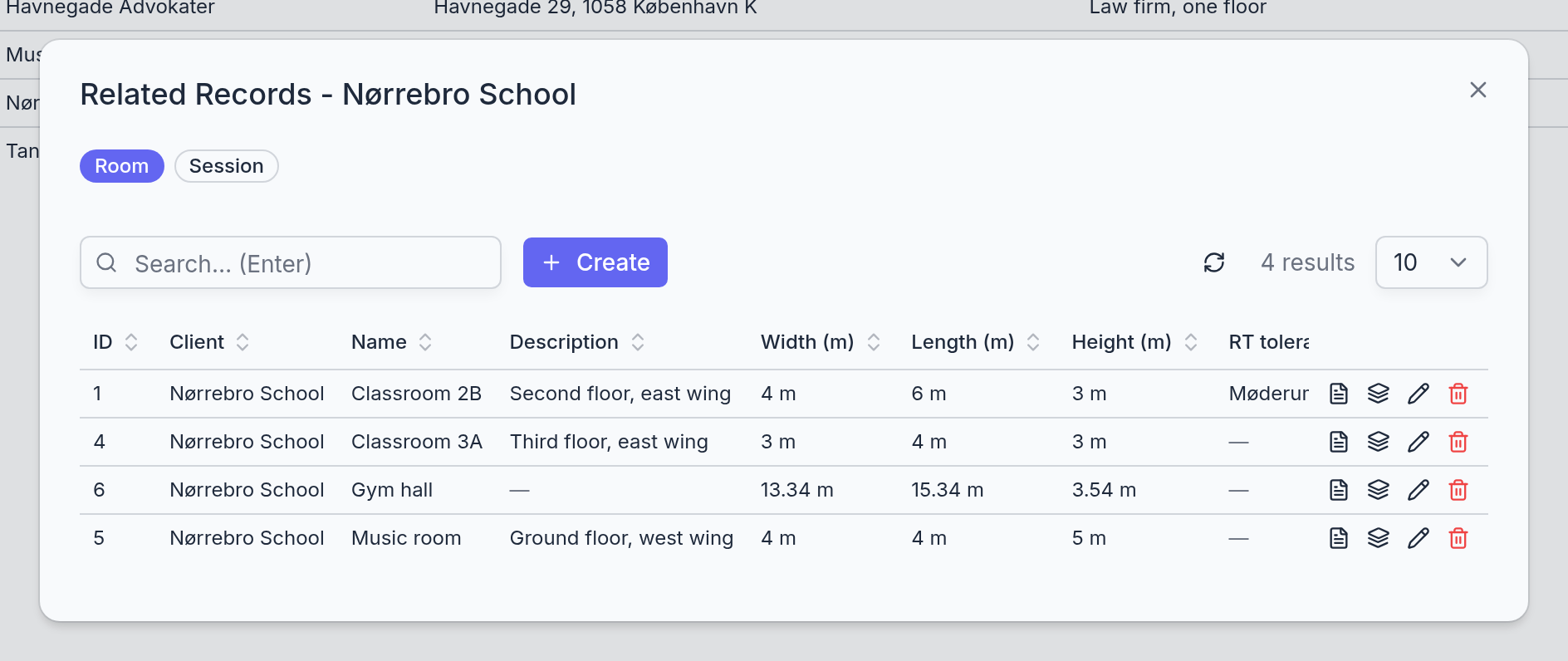
The Related records button on a client opens its rooms and sessions, on a Room tab and a Session tab. Both are the same lists as the Rooms and Sessions pages, filtered to this client, so a room can be created, edited, or deleted from here; a room created here already has its Client filled in.
Good to know
A client cannot be deleted while it has rooms. The delete fails with an error message. Delete its rooms first, which in turn requires their sessions to be gone, or simply keep the client: an unused one does no harm.
Deleting a client is final. Unlike sessions and series, a client is not marked as deleted first and cannot be restored. The confirmation dialog says so.
Materials
The absorbing materials the simulation can add to a room: each one is a name with six absorption coefficients, one per frequency band, taken from the product's datasheet.
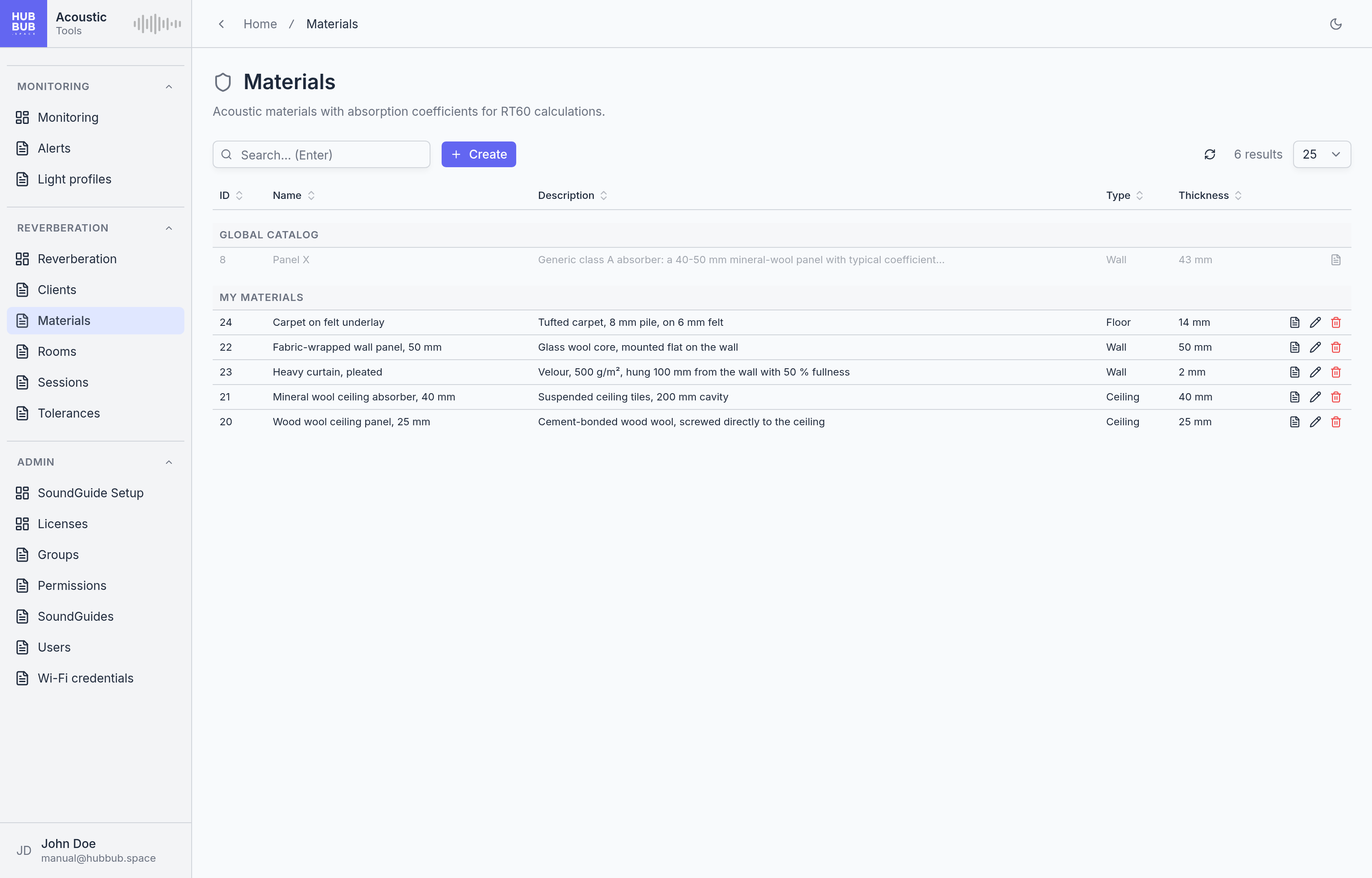
Materials is a list page in two sections. Global catalog holds the materials HUBBUB provides to every organisation; they can be used and viewed but not edited or deleted. My materials holds the organisation's own, which everyone whose group may manage materials can create, change, and delete. Both appear in Material Selection on the Reverberation page, the organisation's own ones marked Mine.
The global catalog's Panel X is a generic class A absorber, with the coefficients typical of a 40 to 50 mm mineral-wool panel. It answers "what would a good absorber do here?" before a specific product is chosen; once one is, create it as a material of its own with the figures from its datasheet.
What the coefficients mean
The absorption coefficient α of a material is the share of the sound energy that hits it and does not come back: 0 reflects everything, 1 absorbs everything. It differs by frequency, which is why a material has one value for each of the six bands from 125 Hz to 4000 Hz. Thin, soft materials absorb the high bands and little else; thick porous ones, or panels mounted with a cavity behind them, reach down into the low bands too. Manufacturers measure these values in a laboratory and print them in the datasheet, usually as a table per band; some also give a single class, from A for the best absorbers to E, which is a summary of the same table.
The simulation multiplies each coefficient by the area of the material in square metres to get the absorption it adds, per band, and predicts the new reverberation time from that and the room's volume. The coefficients are therefore the whole point of a material: a value copied carelessly makes every prediction with that material wrong.
Creating a material
- Click Create, or the pencil on one of the organisation's own materials.
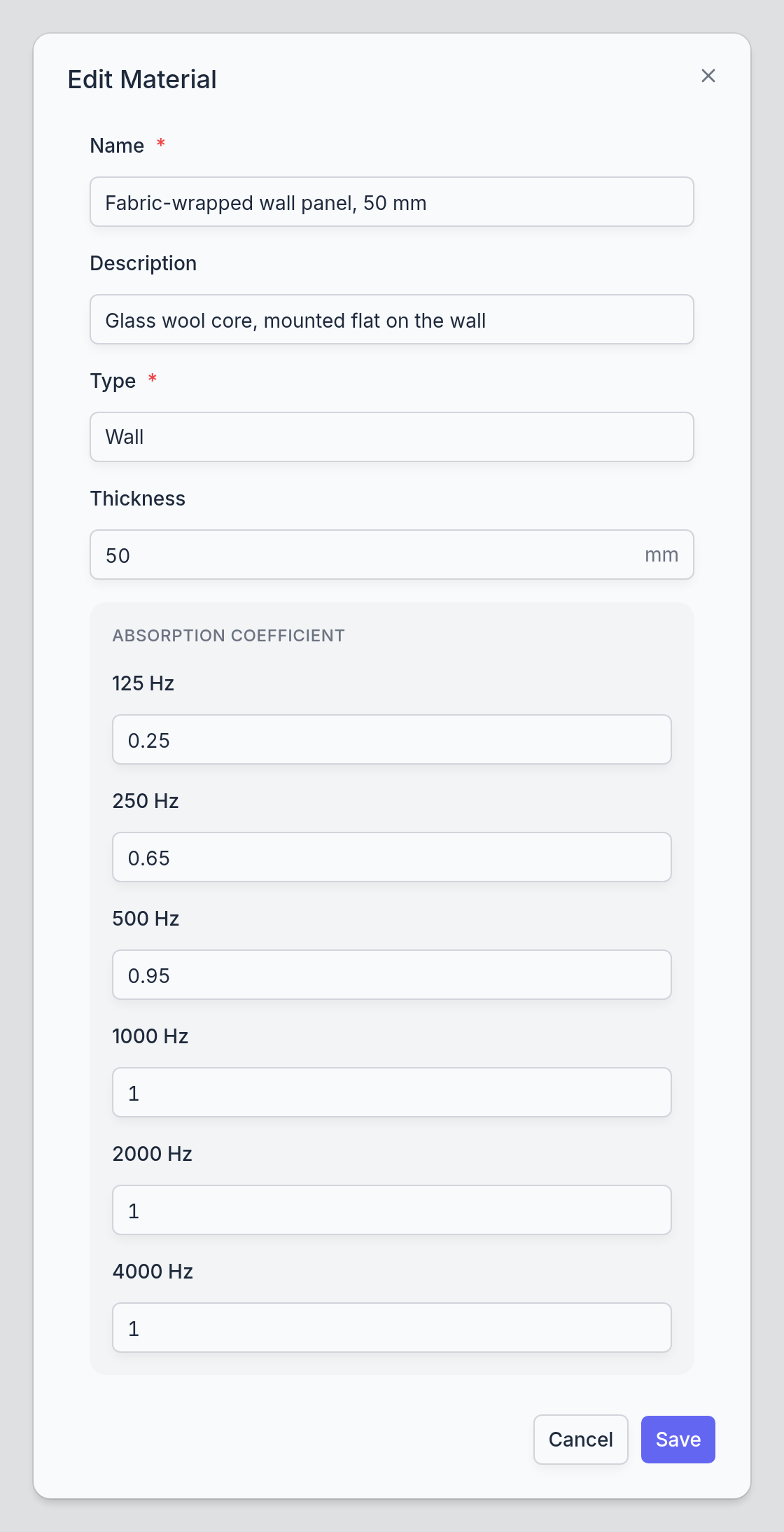
- Give it a Name that includes what distinguishes the product, such as its thickness or mounting, and choose its Material type.
- Enter the Thickness and the six coefficients from the datasheet.
- Click Save. The material is available in Material Selection at once.
- Name
- Required. Shown in Material Selection, in the sliders of the simulation, and in the names of saved scenarios ("25 m² of Panel X"), so it should identify the product at a glance: "Fabric-wrapped wall panel, 50 mm" rather than "Panel".
- Description
- Optional notes: the exact product, the mounting the coefficients assume, where the datasheet came from. Shown in the table and in View details.
- Material type
- Required. Wall, Floor, or Ceiling: where the material is normally applied. It is a label that helps find the right material; the simulation treats all three the same.
- Thickness (mm)
- The thickness of the material, as on the datasheet. Informational: the coefficients already account for it, which is why a 25 mm and a 50 mm version of the same product are two materials.
- α 125 Hz to α 4000 Hz
- The absorption coefficients, from 0 to 1, in the six bands the simulation uses. Datasheets sometimes list more bands, including 63 Hz and 8000 Hz; those are not needed.
Good to know
Coefficients depend on mounting. The same panel absorbs more at low frequencies with an air gap behind it than screwed flat to the wall, and datasheets give separate tables for each case. Enter the values for the mounting that will actually be used, and say which in the description.
Materials are shared within the organisation. A material created by one user is available to all; the global catalog is the same for every organisation and is maintained by HUBBUB.
Deleting a material removes it from the list and from Material Selection. Scenarios already saved with it are not changed.
Rooms
The rooms that are measured: each belongs to a client and has the dimensions the simulation needs, optionally a tolerance to judge the result against, and photos.
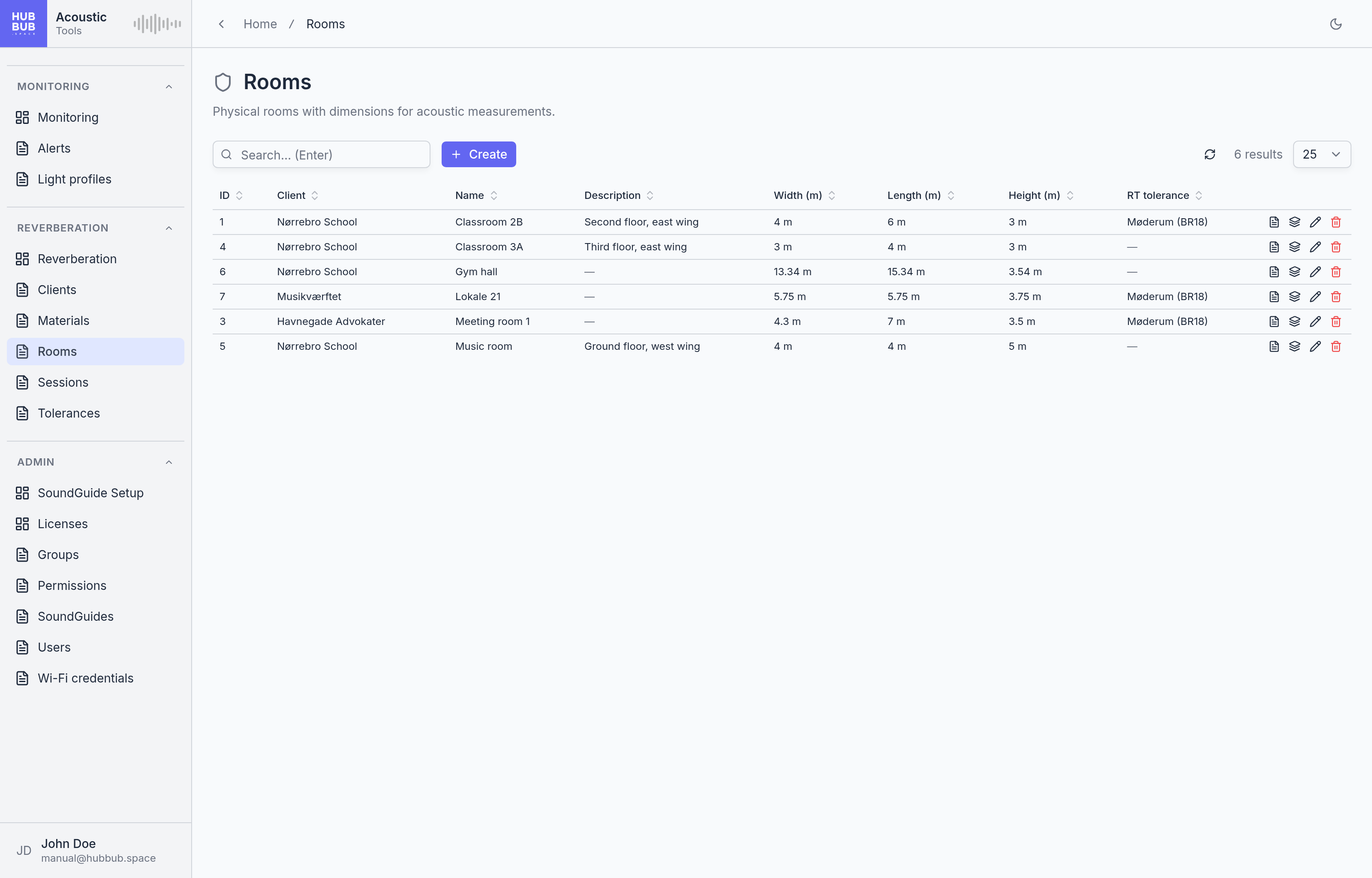
Rooms is a list page. A room is where a measurement takes place: the Reverberation page is set up by choosing a client and then one of its rooms, and every session belongs to the room it was measured in. The room's dimensions matter beyond labelling: its volume goes into the prediction of the simulation, and its ceiling and walls set the Max surface the simulation can cover with material.
Creating or editing a room
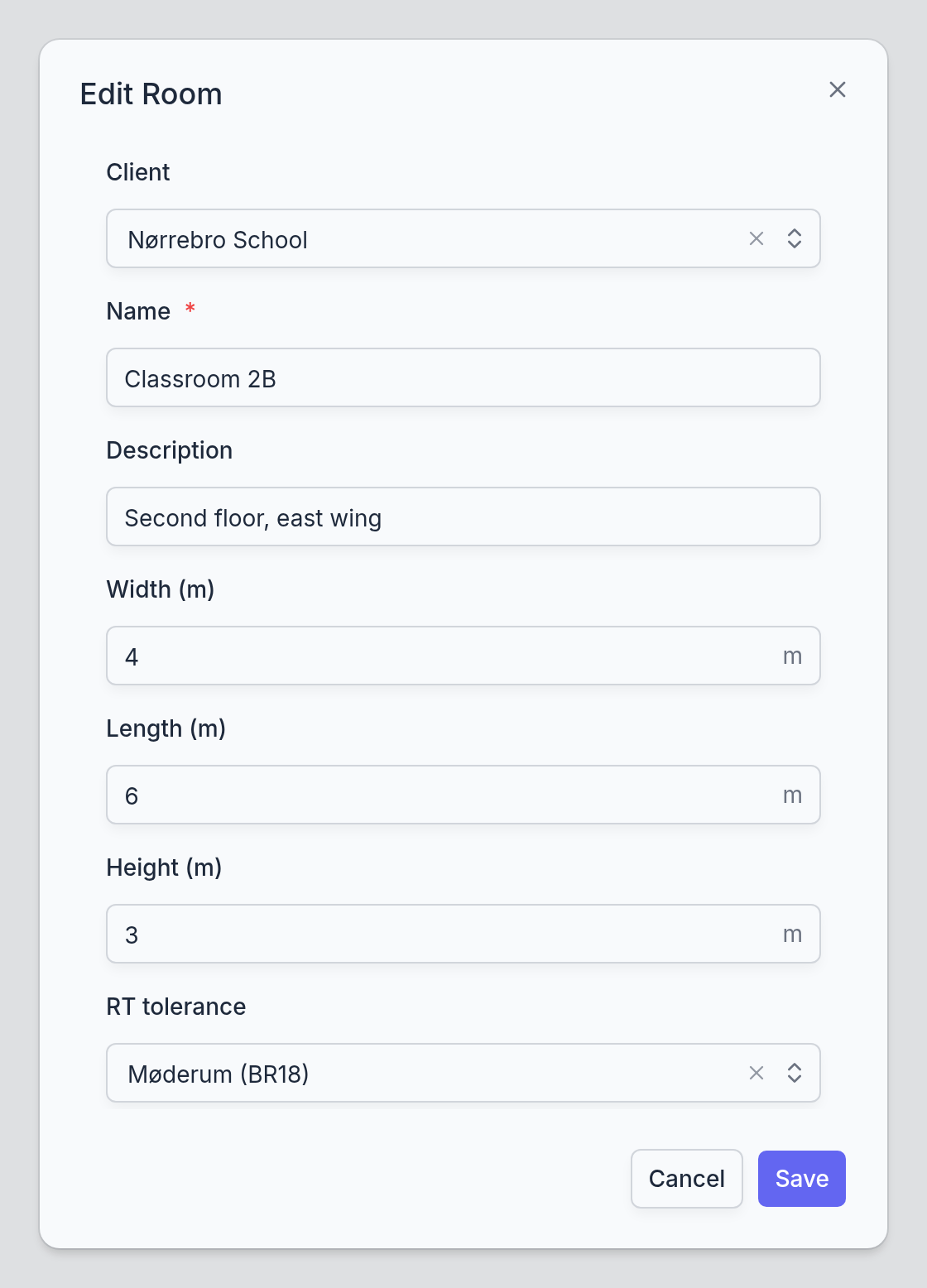
- Click Create, or the pencil on an existing room. The + button next to the room list on the Reverberation page opens the same dialog with the client already chosen.
- Choose the Client and give the room a Name.
- Enter Width, Length, and Height in metres.
- Optionally pick an RT tolerance, and click Save.
- Client
- The organisation the room belongs to. A room can be moved to another client here; its sessions move with it.
- Name
- Required. Shown in the room list of the Reverberation page, in the session tables, and on the PDF report. Room numbers or names as the client uses them work best.
- Description
- Optional: the floor, the wing, what the room is used for. Shown in the table and on the room card of the Reverberation page.
- Width (m), Length (m), Height (m)
- The inner dimensions in metres, to the centimetre. The volume is calculated from them and shown on the room card. For a room that is not a box, enter the dimensions of a box with the same volume and roughly the same floor area; the volume is what the prediction uses, and ceiling and walls only limit how much material can be placed.
- RT tolerance
- Optional. The band of acceptable reverberation times for this kind of room, from the Tolerances page. With a tolerance set, the graph on the Reverberation page shades the band and rings averages outside it, and the PDF report checks each series against it. It can be set or changed at any time; graphs and reports follow the current choice.
Photos
A room can carry photos, for instance of the untreated room or of where the SoundGuide stood. The camera button on the room card of the Reverberation page uploads one directly; the Related records button on the Rooms page opens them all on the Room image tab, where the eye button shows a photo full size and Create uploads another. The room card shows a View link for the first photo.
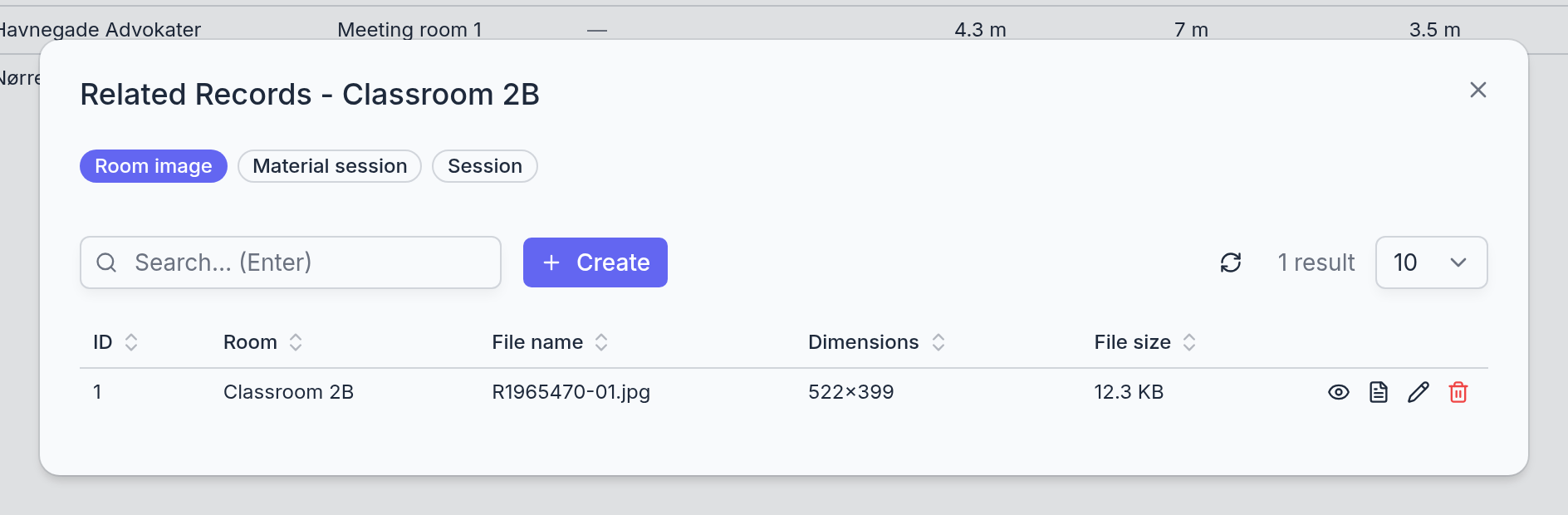
The other tabs of the dialog list what was measured in the room: Session, the same list as the Sessions page filtered to this room, and Material session, the scenarios saved in the simulation for it.
Good to know
Check the dimensions before measuring. A wrong volume does not affect the measurement itself, but every prediction and every Max surface for the room is calculated from it. Correcting the dimensions afterwards corrects the predictions too, since they are recalculated whenever a session is loaded.
A room cannot be deleted while it has sessions. The delete fails with an error message; delete the sessions first or keep the room. Deleting a room removes its photos with it.
Sessions
Every measurement session of the organisation, with its series and their measurements: the place to find an old session, restore a deleted one, or remove a stray measurement.
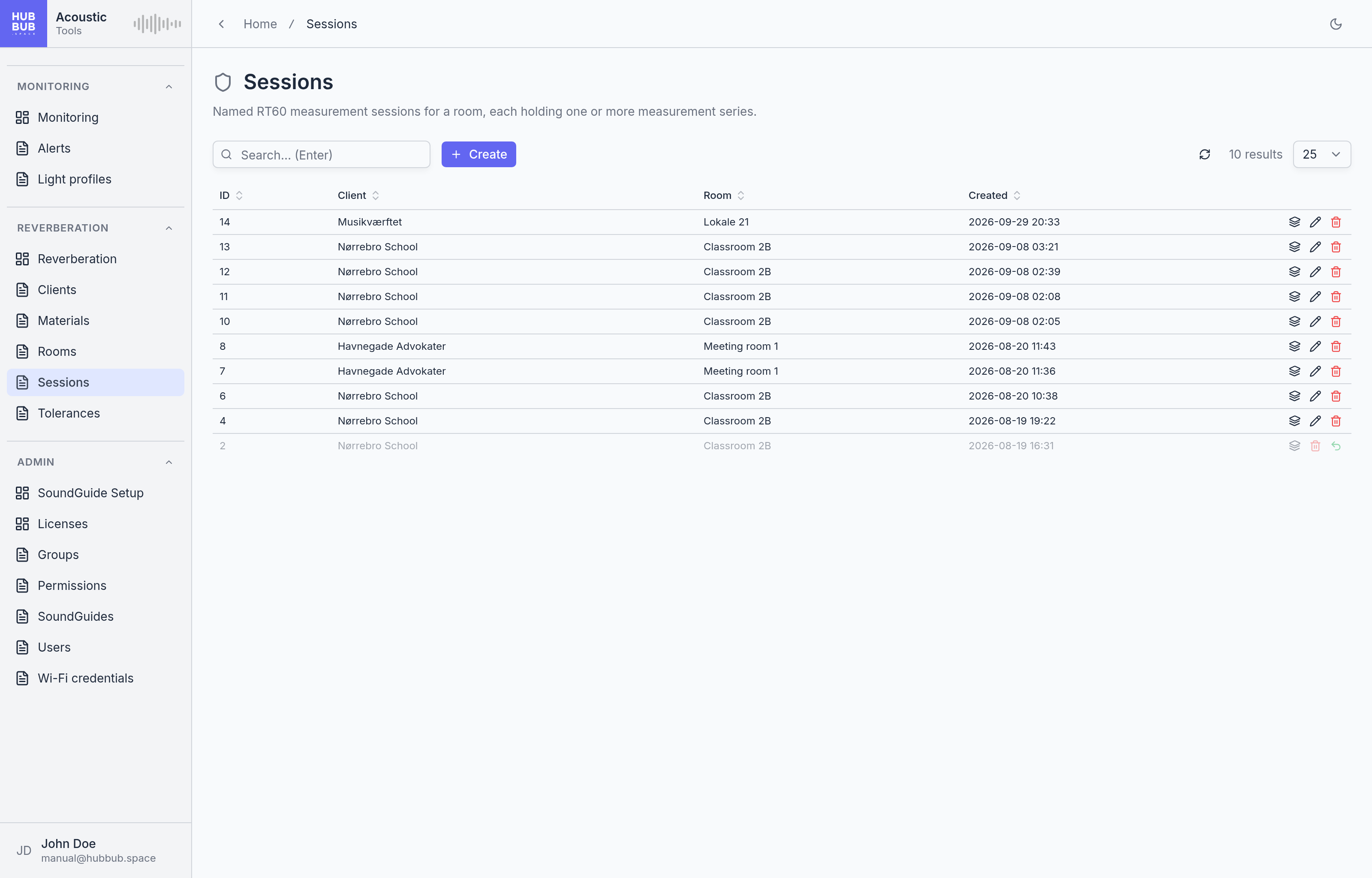
Sessions is a list page. A session is the container of what was measured in one room for one purpose; its series hold the measurements, as the Reverberation chapter explains. A session has no name: it is identified by its room and the time it was created. The page lists the same sessions as Session History at the bottom of the Reverberation page, which is the better place to open one, since the eye button there loads it with its graph and simulation. This page is for housekeeping.
Sessions are normally created by the Reverberation page, at the first Start RT60 in a room. Create here makes an empty one for a chosen Room; the Client is filled in from the room. The pencil can move a session to another room.
Series and measurements
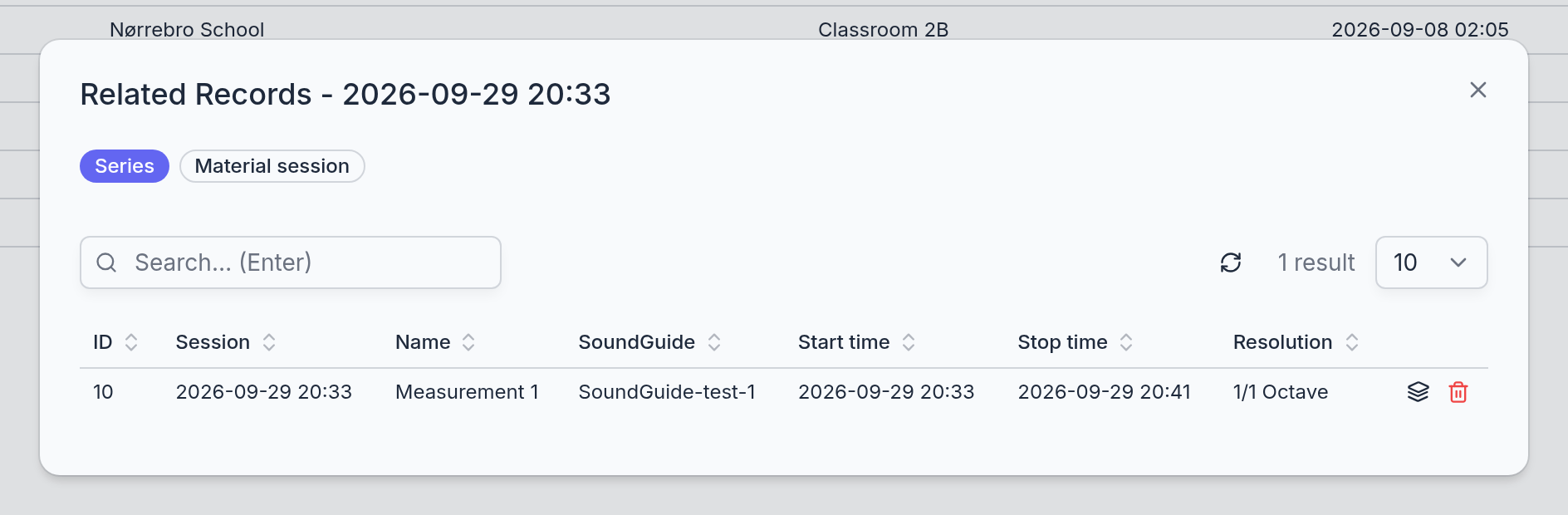
The Related records button on a session opens its Series tab: one row per series with its name, the SoundGuide that made it, its start and stop times, and its resolution. A series without a stop time is still running.
The Related records button on a series, in turn, lists its Measurements: one row per impulse, numbered in the order they were taken, with the reverberation time in seconds for each of the eight bands. A band the device could not evaluate is shown as a dash.
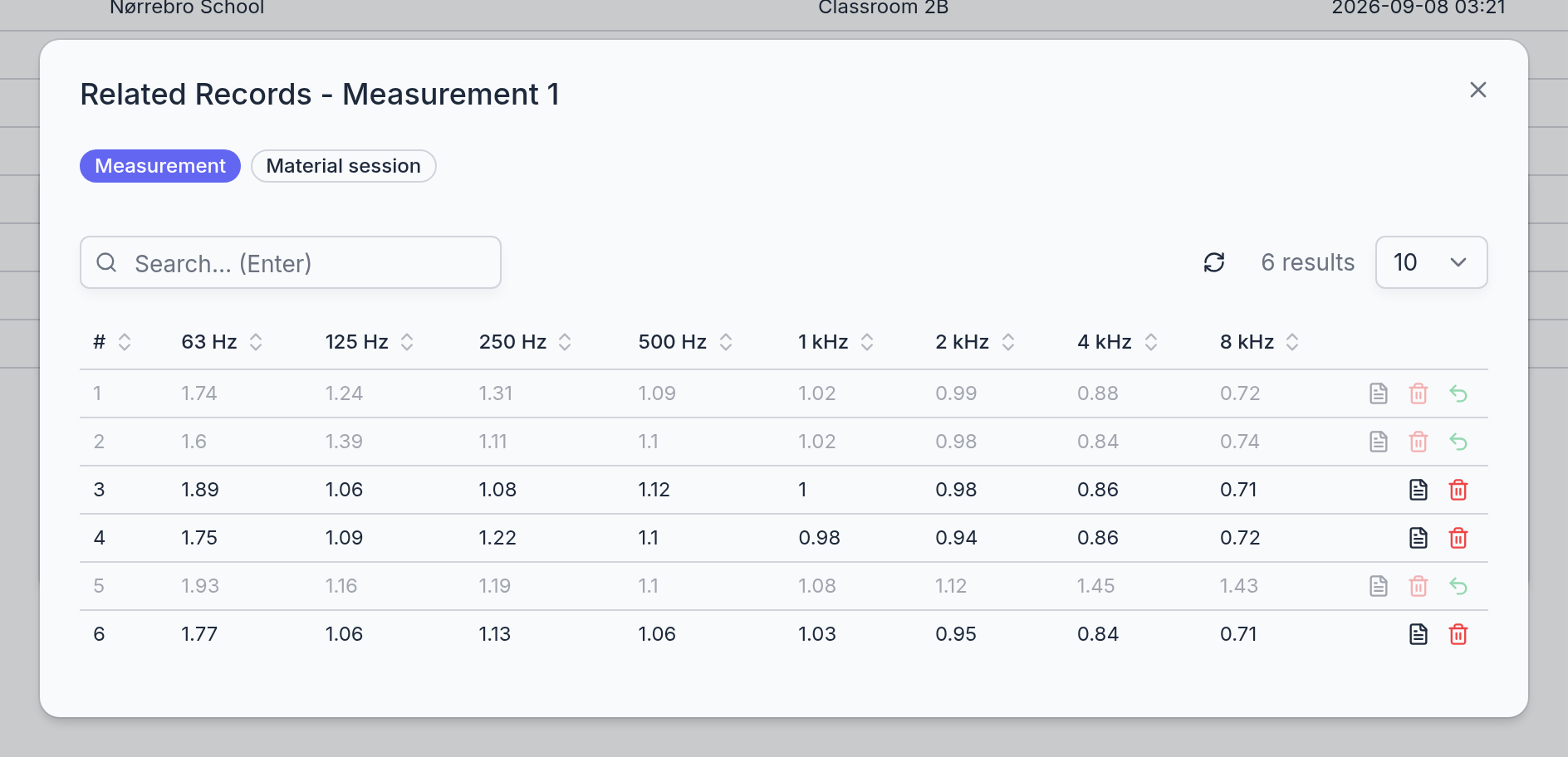
This is where a measurement that spoiled a series, such as a pop during someone's footsteps, is removed: the delete button on its row takes it out of the average, the graph, and the report. The row stays, greyed, and the Undelete button puts it back. Deleting a greyed measurement again removes it for good. Series and sessions work the same way, at their own level.
The Material session tab, on both a session and a series, lists the scenarios saved in the simulation: on the session all of them, on a series those that use it as their baseline. They are easier to work with on the Reverberation page.
Good to know
Deletion happens in two steps at every level. The first delete of a session, a series, or a measurement only greys it out, and Undelete reverses it. The second delete is final: a session takes its series, measurements, and scenarios with it, and a series takes its measurements and the scenarios based on it.
Series are renamed on the Reverberation page. The pencil next to a series in Session Control changes its name; the Related records tables show series and measurements but do not edit them.
Times are shown in the user's time zone, as set on the Account page. The device records measurements in universal time; the tables convert them.
Tolerances
The acceptable reverberation times for a kind of room, as a lower and an upper limit in seconds for each frequency band: assigned to a room, a tolerance turns a measurement into a verdict.
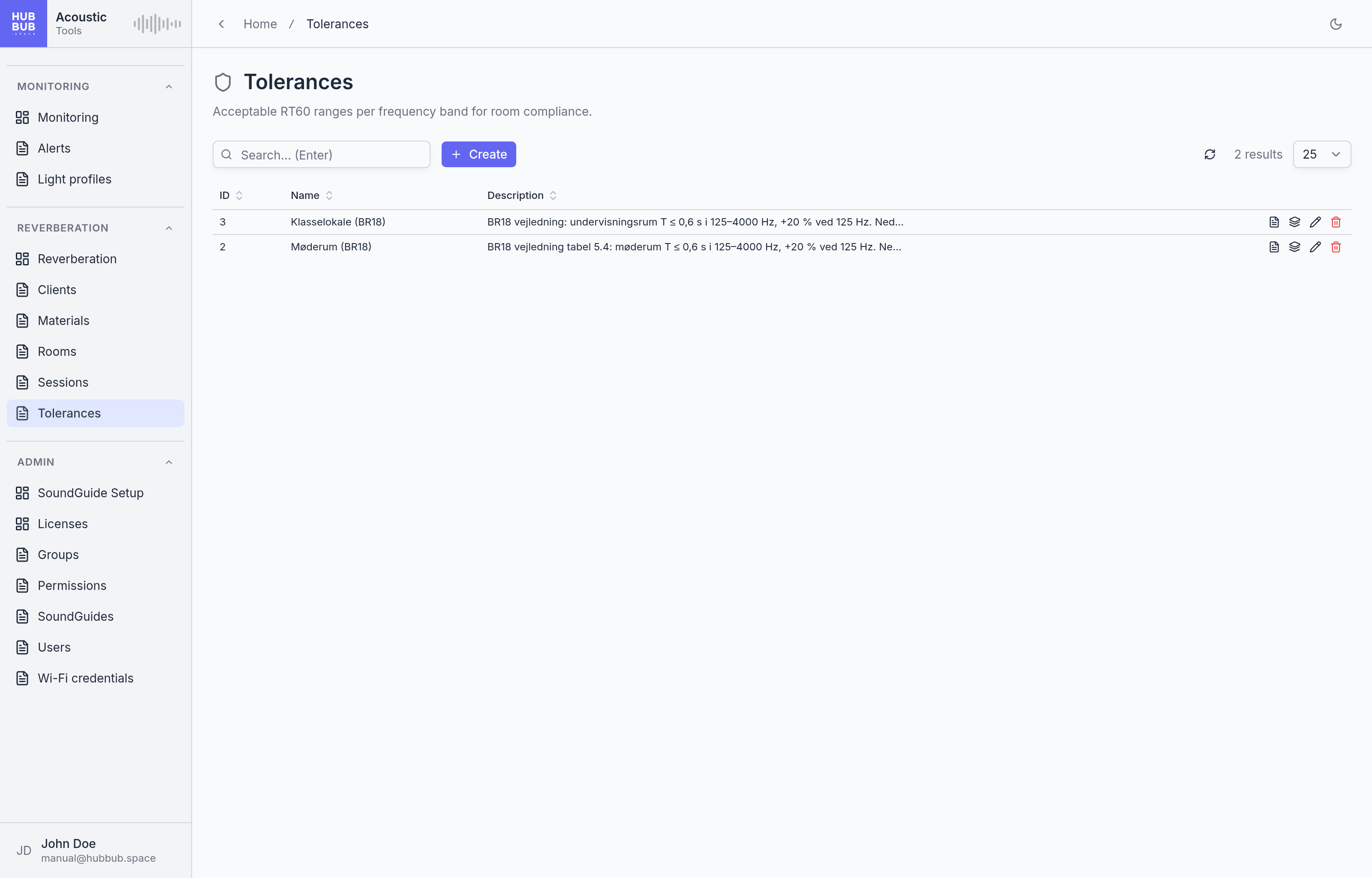
Tolerances is a list page. A tolerance is a named set of limits: for each of the six bands from 125 Hz to 4 kHz, the shortest and the longest reverberation time that is acceptable in a room of that kind. The limits usually come from a building code or a standard, such as the Danish building regulations or DIN 18041, which state a maximum for speech rooms and let the low frequencies run a little longer. The table shows only the name and the description; the limits are in the dialog.
A tolerance does nothing on its own. It is assigned to a room in the RT tolerance field of the Rooms page, and from then on every session in that room is judged against it: the graph on the Reverberation page shades the band between the limits and rings an average that falls outside it, the room card names the tolerance, and the PDF report adds a Tolerance evaluation to each series. Several rooms can share one tolerance, and a room can have none.
Creating or editing a tolerance
- Click Create, or the pencil on a row.
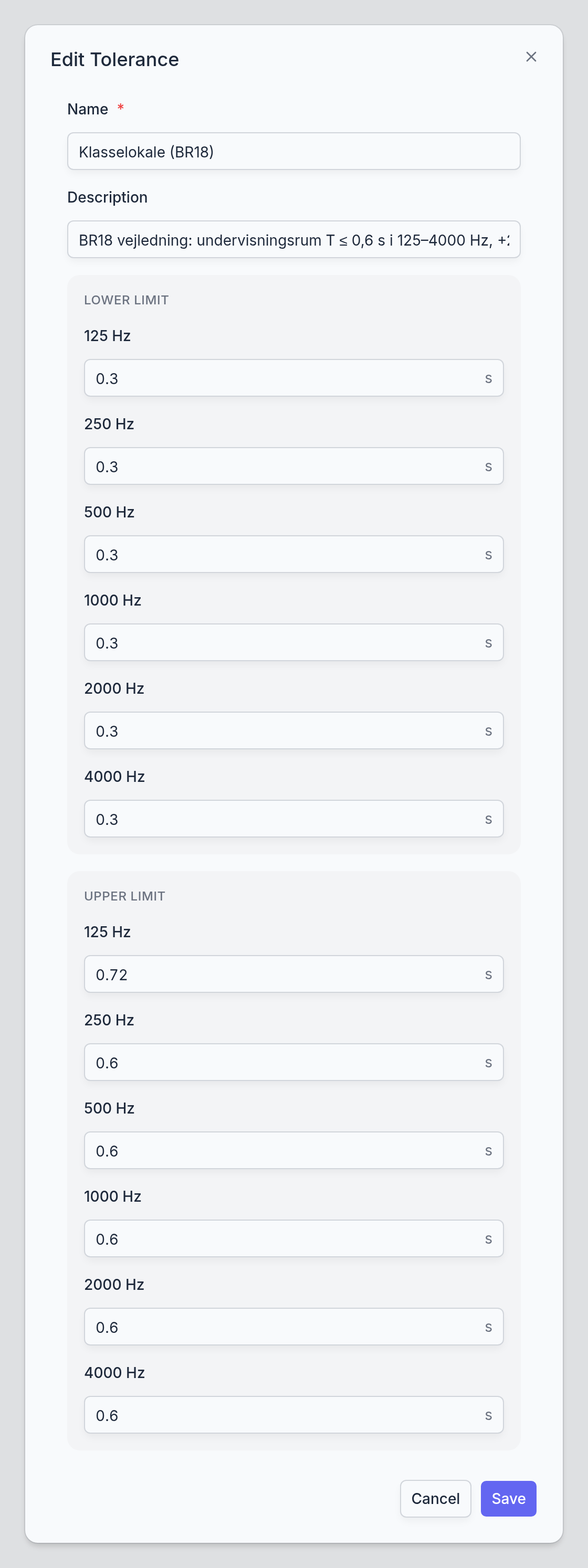
- Enter a Name and, optionally, a Description that says where the limits come from.
- Fill in the six bands under Lower limit and the six under Upper limit, in seconds, and click Save.
- Name
- Required. What appears in the RT tolerance field of a room, on the room card, and in the report. The kind of room and the source of the limits make a good name.
- Description
- Optional. Shown in the table only: the clause of the code or the standard the limits are taken from, and how the lower limit was chosen, so the choice can be checked later.
- Lower limit, 125 Hz to 4000 Hz
- The shortest acceptable reverberation time in each band, in seconds, in steps of 0.05. A room that is deader than this sounds unnatural and makes speech tiring; codes rarely state a minimum, so this is usually a practical choice, for instance 20 percent below the maximum.
- Upper limit, 125 Hz to 4000 Hz
- The longest acceptable reverberation time in each band, in seconds. This is the figure a code states for the kind of room. Each upper limit must be at least the lower limit of the same band; the dialog refuses to save otherwise.
How a measurement is judged
The check is made per band, on the average of the series, not on the single measurements: the average of a band is within tolerance when it is between the lower and the upper limit, both included. On the graph such a band lies inside the shaded area; an average outside it is ringed in red. The report prints the same check as a table with the two limits, the average, and Within tolerance as Yes or No for each band, one table per series. A band the device could not evaluate gets no verdict.
The 63 Hz and 8 kHz bands are measured and shown in the measurement tables but are not part of any tolerance; the bands a room is judged on are the six in between.
Good to know
Changing a tolerance changes the verdicts of every room that uses it, including sessions measured long ago: graphs and reports are always drawn against the current limits. For a new rule, create a new tolerance and move the rooms to it; the old one keeps the old sessions honest.
A tolerance that is in use cannot be deleted. Clear the RT tolerance field of the rooms that use it, or move them to another one, first.
SoundGuide Setup
Where a new SoundGuide gets its name, its Wi-Fi network, and its licence: over a USB cable, from the browser, in a couple of minutes.
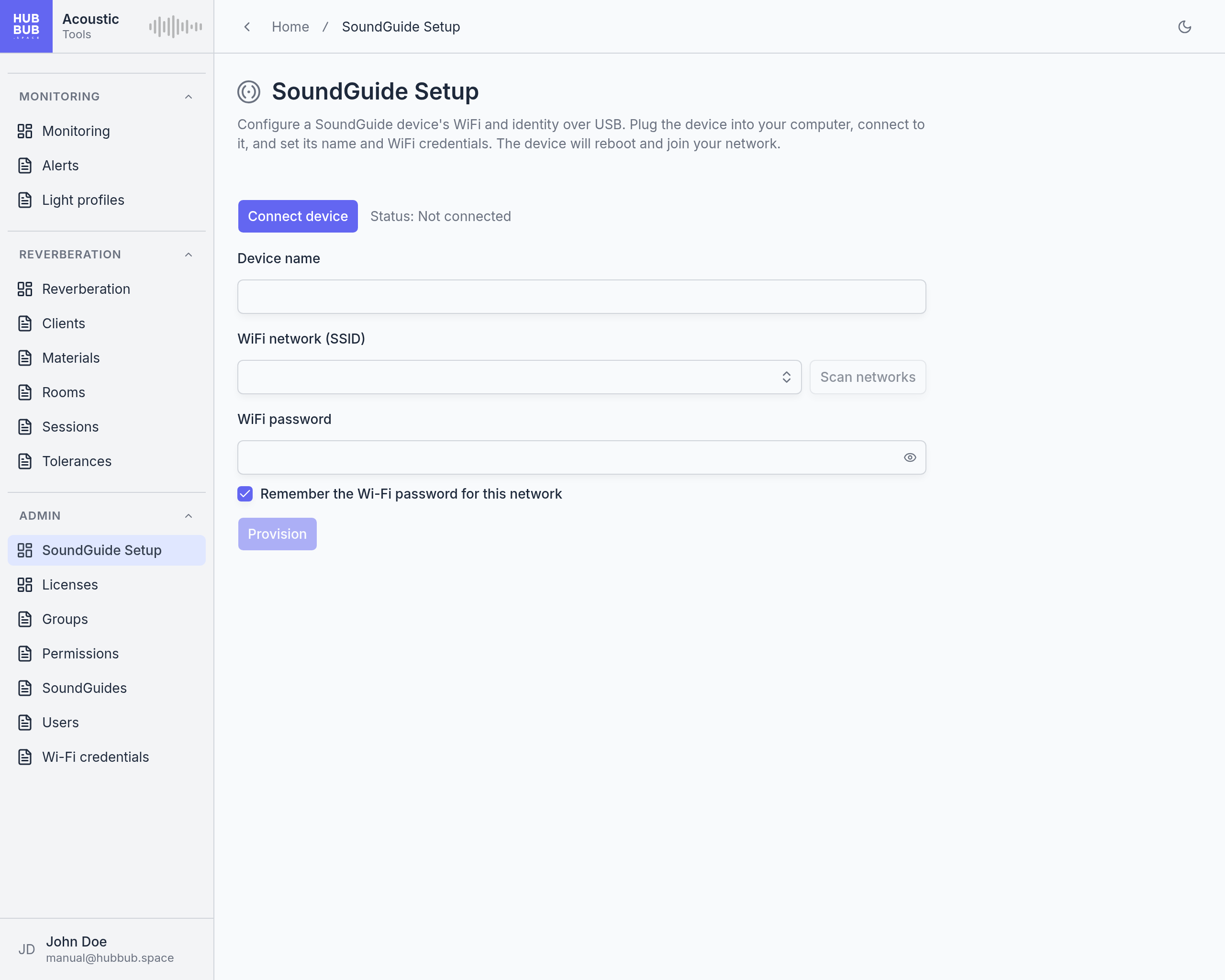
A SoundGuide out of the box measures and shows its colours but knows nothing about the organisation it belongs to. Setup tells it: the Wi-Fi network to join, the name it will carry on the dashboard, and the licence that decides what it may do. The page talks to the device over USB with the browser's serial port support, so it works in Chrome, Edge, and Opera; Firefox 151 and later can be made to work, as the page explains when it finds no serial support. No software is installed on the computer.
The same page re-configures a device that is already set up, for instance to move it to another network or to change its licences, and resets a device to its factory state.
Setting up a device
- Plug the SoundGuide into the computer with a USB cable and open SoundGuide Setup.
- Click Connect device. The first time, the browser asks which port to use; choose the SoundGuide. The page restarts the device, reads what it is, and asks it which networks it can see. After a few seconds the status reads Connected and the form appears.
- Under Device license, tick Monitoring, Reverberation, or both. The number of free licences of each kind is shown on the right.
- Enter a Device name. It must be unused in the organisation; the field says so if it is not.
- Choose the WiFi network (SSID) from the list of networks the device sees, or type the name of a hidden one.
- Enter the WiFi password. The eye button shows what was typed.
- Click Provision. The Activity log reports each step, and the device restarts with its new configuration.
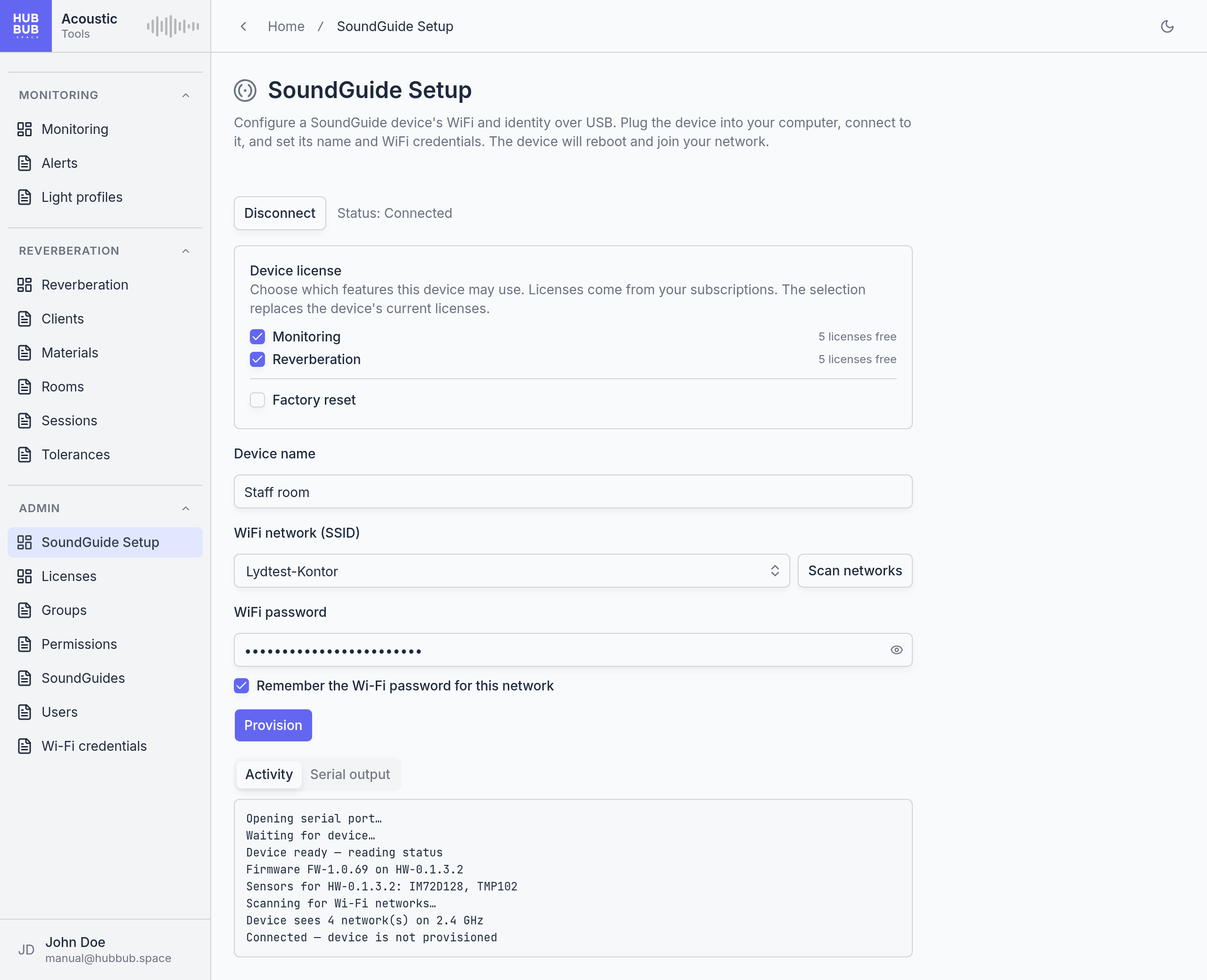
The network field opens a list of what the device found when it scanned, with the signal strength, the channel, and the security type of each network.
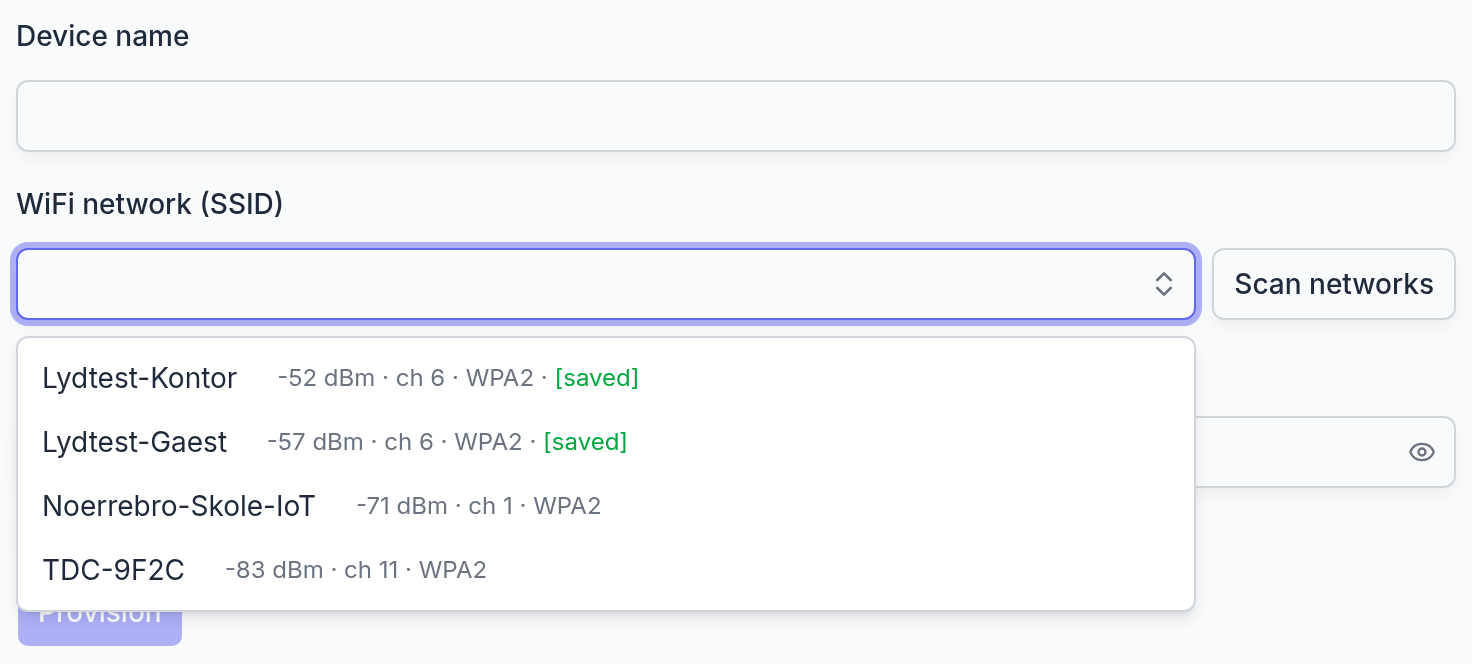
- Device license
- What the device may do: Monitoring for sound level widgets and alerts, Reverberation for RT60 sessions. Licences come from the subscription; the Licenses chapter explains the pools. The selection replaces whatever the device holds. With nothing ticked the device is registered inactive, after a confirmation, and can be licensed later on the SoundGuides page. When no licence is free, the page says so before provisioning, and the device registers without one.
- Device name
- How the device appears everywhere on the dashboard: in widgets, alerts, and sessions. The room it stands in is the usual choice. Names are unique within the organisation.
- WiFi network (SSID)
- The network the device joins. The list holds what the device saw in its last scan, with the signal strength, the channel, and the security type, plus the networks whose password the organisation has saved, marked saved. Scan networks looks again. A name that is typed but not in the list gets a warning: either the network is hidden, or it is 5 GHz only, which the device cannot join.
- WiFi password
- The password of that network. Choosing a saved network fills it in.
- Remember the Wi-Fi password for this network
- Ticked by default: after a successful provisioning the password is stored on the Wi-Fi credentials page, encrypted, so the next device on the same network needs no typing.
- Factory reset
- Instead of provisioning, erase the device's configuration; see below.
After provisioning
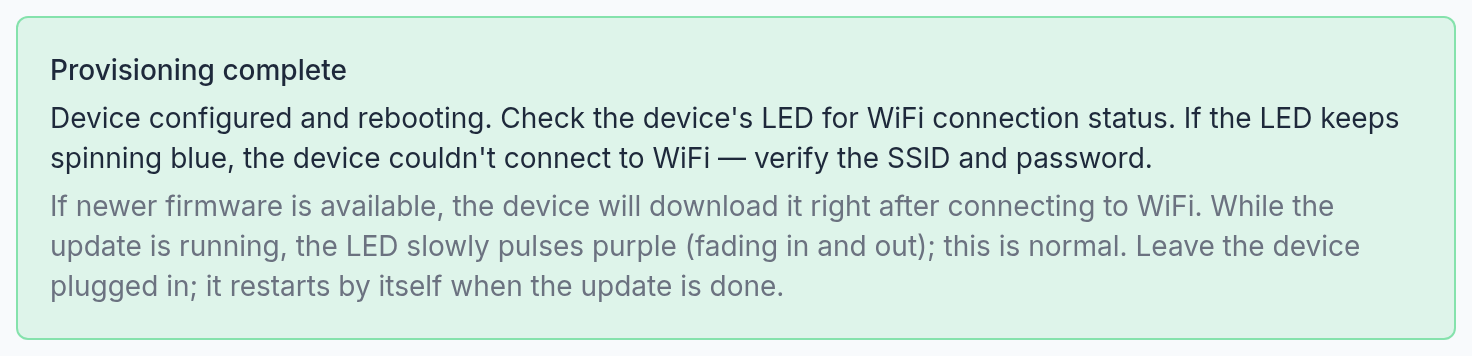
The device restarts and joins the network on its own; the cable can be unplugged as soon as the notice appears. Its light tells how it is getting on: a spinning blue means it is still trying to connect, so a blue that never stops points to a wrong network or password, and a slow purple pulse means a firmware update is being installed, which the device does by itself right after its first connection. It appears on the SoundGuides page as soon as it has called home.
Re-configuring a device
Connecting a device that is already set up shows the notice This device is already provisioned. Its name is filled in, its current licences are ticked and marked Licensed, and the Wi-Fi fields are empty, since the device does not reveal its password. Change what needs changing and provision again; the device keeps its identity on the dashboard, with its history.
Factory reset
Ticking Factory reset turns the Provision button into Factory reset; after a confirmation the device forgets its network, its name, and its link to the organisation, and restarts as a stand-alone level indicator that only shows colours. Its licences return to the pool. Its entry on the SoundGuides page stays, offline, so the history is kept and the device can be set up again later.
Good to know
SoundGuide uses 2.4 GHz Wi-Fi only. A network that does not appear in the list is usually a 5 GHz network. For an iPhone hotspot, turn on Maximize Compatibility under Personal Hotspot and keep that screen open while the device connects.
Connecting restarts the device. Opening the page does nothing to it, but Connect device does, so a SoundGuide in the middle of a measurement should not be connected.
The Serial output tab shows the device's own messages, word for word. It is of no use day to day, but when something goes wrong, its contents are what support will ask for.
Licenses
The seats the subscription provides and the devices they are assigned to: one page to see how many are free, and to move a licence from one SoundGuide to another with a click.
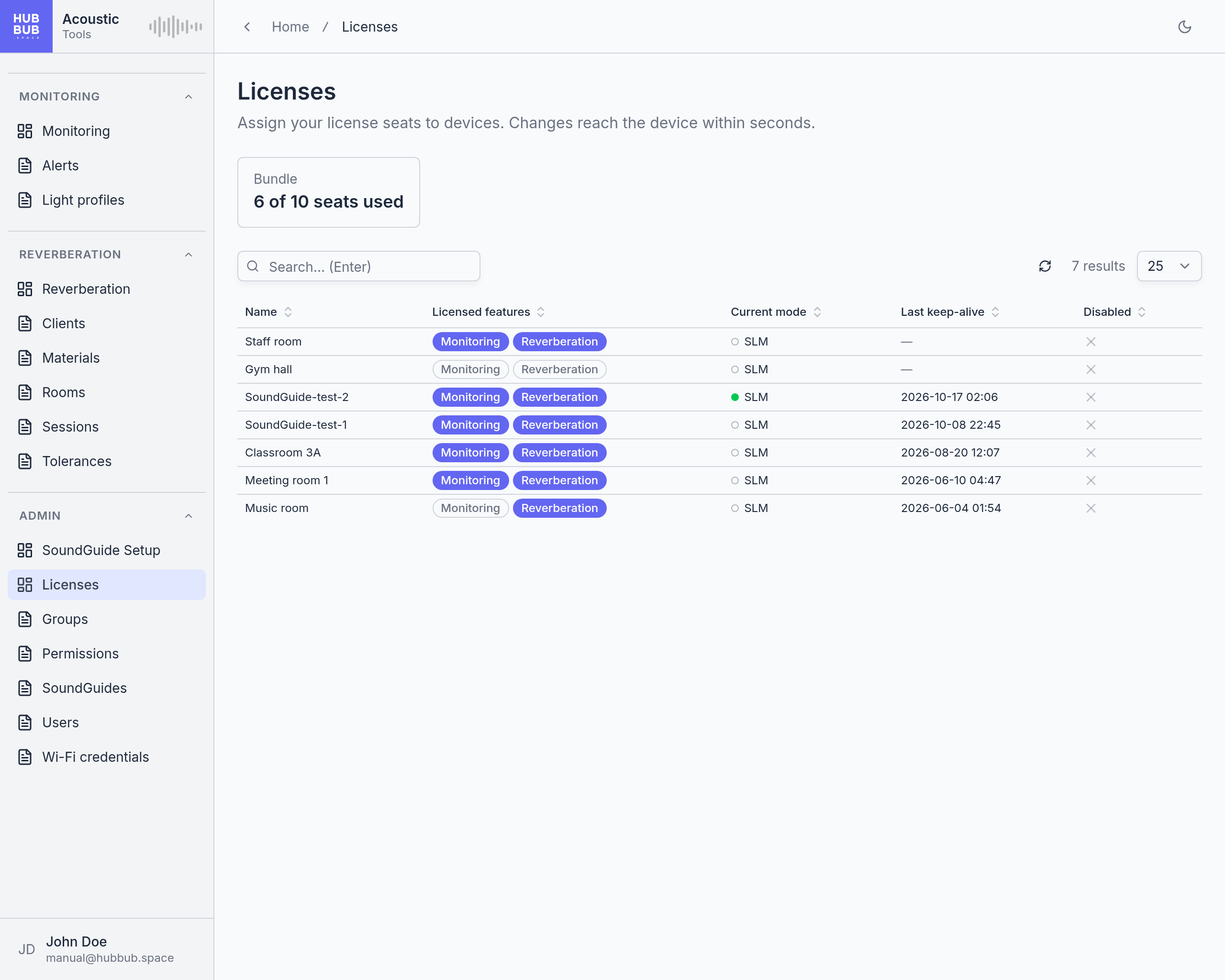
A subscription provides seats; a seat becomes a licence when it is assigned to a device. A Monitoring seat lets one device feed the sound-level widgets and alerts, a Reverberation seat lets one device make RT60 measurements, and a Bundle seat lets one device do both. A device without a licence stays registered but does nothing. Seats are bought and changed in Billing, in the user menu at the bottom of the sidebar; this page is where they are handed out.
The cards at the top show each pool the organisation owns, as seats used of seats available, or Unlimited licenses. The table below lists every device with its Licensed features as two badges: filled when the device holds the licence, outlined when it does not. The same badges appear on the SoundGuides page.
Assigning and removing licences
- Find the device in the table; the search box filters by name.
- Click a badge to grant that licence, or click a filled badge to take it away.
The change is saved at once and reaches the device within seconds. A device that was idle starts measuring when it receives a licence; a device that loses the licence its current work needs stops and falls back to what it is still allowed to do. When no seat is free for a grant, the badge stays outlined and a message says so: free a licence on another device first, or add seats in Billing.
Badges can only be clicked on a device that is online. On a device that has not reported for five minutes they do not respond; its licences are changed through the edit dialog on the SoundGuides page instead, which is also how a licence is set aside for a device before it has ever connected.
- Name
- The device name, as given during setup.
- Licensed features
- Monitoring and Reverberation, filled when held.
- Current mode
- What the device reports it is doing: SLM for sound level monitoring, RT60 for a reverberation measurement, Idle for nothing, and a few technical states such as OTA while it updates its firmware. The dot in front of it is the device's status: green for Measuring, blue for Idle, hollow for Offline, amber for Suspended. The mode shown for an offline device is the last one it reported.
- Last keep-alive
- When the device last reported in. Devices report every twenty seconds, so a time more than a few minutes old means the device is off or without network. The table is sorted by this column, most recent first.
- Disabled
- Whether the device has been taken out of service on the SoundGuides page. A disabled device is greyed, keeps its licences, and measures nothing until it is enabled again.
When seats run short
A licence is never taken away automatically. If the subscription shrinks below what is assigned, the pool card turns yellow and a notice reads More licenses assigned than seats owned: the devices keep working, but no new licence can be granted until the assignment fits again, either by removing licences here or by adding seats in Billing.
If the subscription lapses altogether, the devices keep running for fourteen days. After that they are paused and the page shows Devices suspended. They resume by themselves as soon as the assignment fits the seats again: a renewed subscription that covers everything wakes the whole fleet, and otherwise licences are removed here until it fits. The assignment itself is kept throughout, so after a renewal every device gets exactly the licences it had.
Good to know
One Bundle seat covers both features on one device. A device with both licences uses one Bundle seat, or one Monitoring seat and one Reverberation seat where the organisation has single-feature plans. The cards count whichever is in use.
Disabling is not the same as removing licences. A disabled device holds its seats; to free them for another device, click its badges off, or edit it on the SoundGuides page if it is offline.
Groups
The permission groups of the organisation: every user belongs to one, and the group decides which pages the user sees and which of them the user may change.
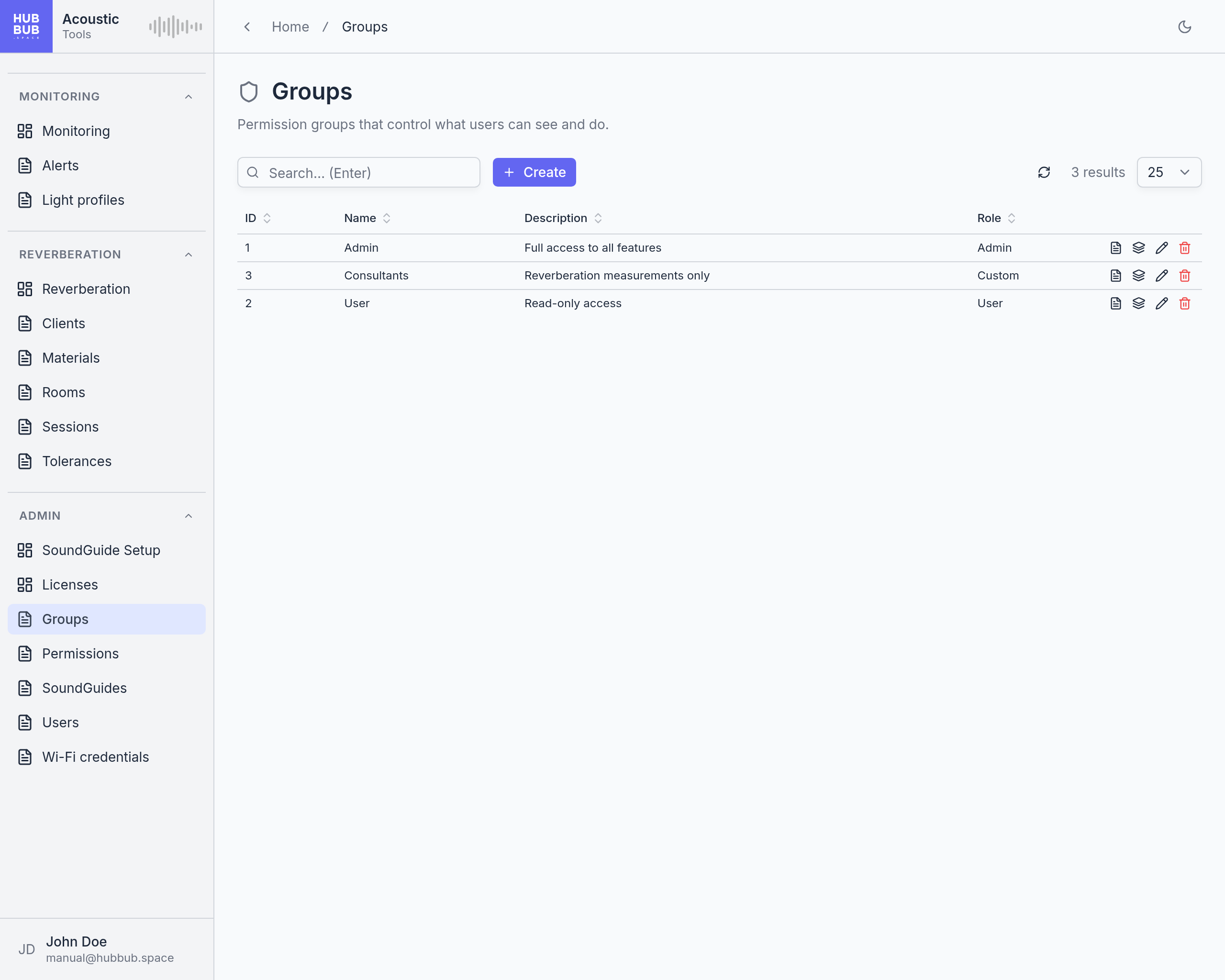
Groups is a list page. Every organisation starts with two groups: Admin, which sees and manages everything, and User, which sees the measuring pages and changes nothing. Each user on the Users page is placed in exactly one group, and that is the whole of the user's access: there are no permissions on individual users. More groups are added when a finer split is wanted, for instance a group for external consultants who manage rooms and reverberation sessions but have nothing to do with alerts and light profiles, or a group for staff who should see everything and change nothing but their own Monitoring page.
A new group starts with a copy of the User permissions: the measuring pages are shown read-only and the administration pages are hidden. What it may actually do is set afterwards on the Permissions page, or through the Related records button on its row, which opens the same table for that group alone.
Creating or editing a group
- Click Create, or the pencil on a row.
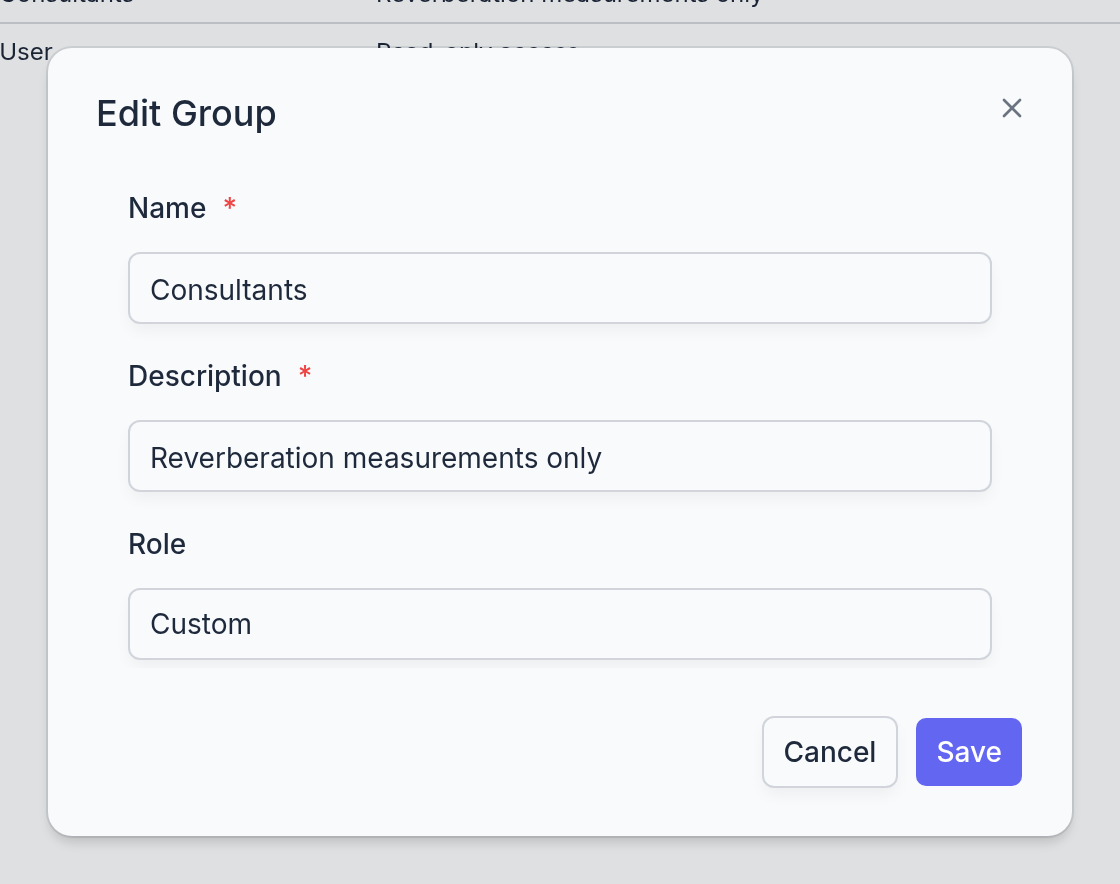
- Enter a Name and a Description.
- Leave Role at User or choose Custom, and click Save.
- Open the Permissions page and set what the new group may see and manage.
- Name
- Required. Shown in the Group field of every user and in the Permissions table.
- Description
- Required. Who the group is for, in a few words.
- Role
- User for an ordinary group and Custom for one whose permissions will be tailored; the two behave alike and the role is just a label for the list. Admin is different: a group with that role always has every permission and may also manage the subscription and the organisation's details in Billing. Its permissions cannot be edited, so a group that should have most but not all rights is made with the User role and given its permissions one by one.
Good to know
A group with users cannot be deleted. The delete button on the row refuses while any user is still in the group; move the users to another group on the Users page first. Deleting a group also deletes its permissions.
Changes take effect at the next page load. A user who is logged in sees new permissions when the dashboard is next opened or reloaded.
Permissions
What each group may see and manage, page by page: one row per group and page, with a switch for seeing it and a switch for changing it.
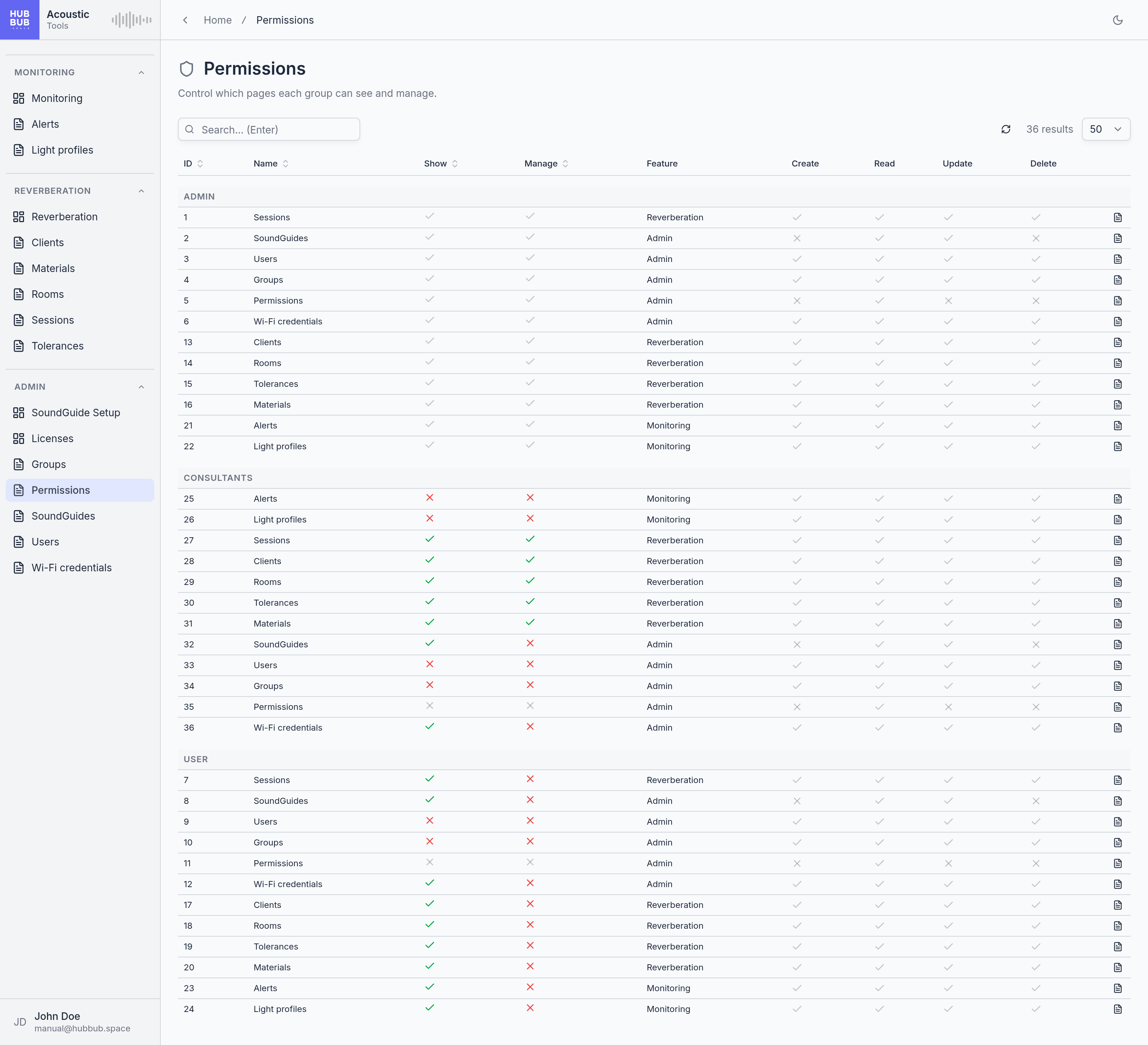
Permissions is a list page, grouped by group. For every group there is one row per list page of the dashboard, from Alerts to Wi-Fi credentials, and the two switches on the row say what members of the group may do with it. The rows are created with the group and cannot be added or deleted; the table is edited in place.
The page is part of a sentence: the group is the subject, the page is the object, and the switches are the verb. A group with Show off for Alerts has no Alerts entry in the sidebar and cannot open it by other means either. A group with Show on and Manage off sees the alerts and opens their details but has no Create button, no pencil, and no delete button. With both on it does everything the page allows.
Changing a permission
- Find the group's rows.
- Click the check or cross under Show or Manage to flip it. The change is saved at once.
The same rows, for one group only, are reached with the Related records button on the Groups page.
- Name
- The page, under its sidebar name.
- Show
- Whether the page is in the group's sidebar and its records can be read.
- Manage
- Whether the group may create, edit, and delete on the page. Meaningless without Show.
- Feature
- The sidebar section the page belongs to: Monitoring, Reverberation, or Admin.
- Create, Read, Update, Delete
- Greyed, for reference: what the page itself supports, regardless of group. A SoundGuide, for instance, is never created or deleted on its page, so Manage on SoundGuides means editing only.
Pages without a switch
The Monitoring, Reverberation, SoundGuide Setup, and Licenses pages have no rows: they are in the sidebar for every group. What a member can do on them follows from the pages they work with. Starting a measurement on the Reverberation page needs Manage on Sessions; setting up a device or changing its licences needs Manage on SoundGuides; the Monitoring page is each user's own and needs nothing.
Good to know
The Admin group's rows are fixed. Its switches are greyed and cannot be turned off, so there is always a group that can reach everything. The Permissions row itself is fixed for every group: only the Admin group manages permissions.
A page that is hidden is also closed. Show off does not merely remove the sidebar entry; requests for the page's records are refused, so the page cannot be reached by typing its address either. The change applies at once to users who are logged in; their sidebar follows at the next reload.
SoundGuides
Every SoundGuide of the organisation: what it is called, what it is licensed for, what it is doing right now, when it last reported, and the settings that steer it.
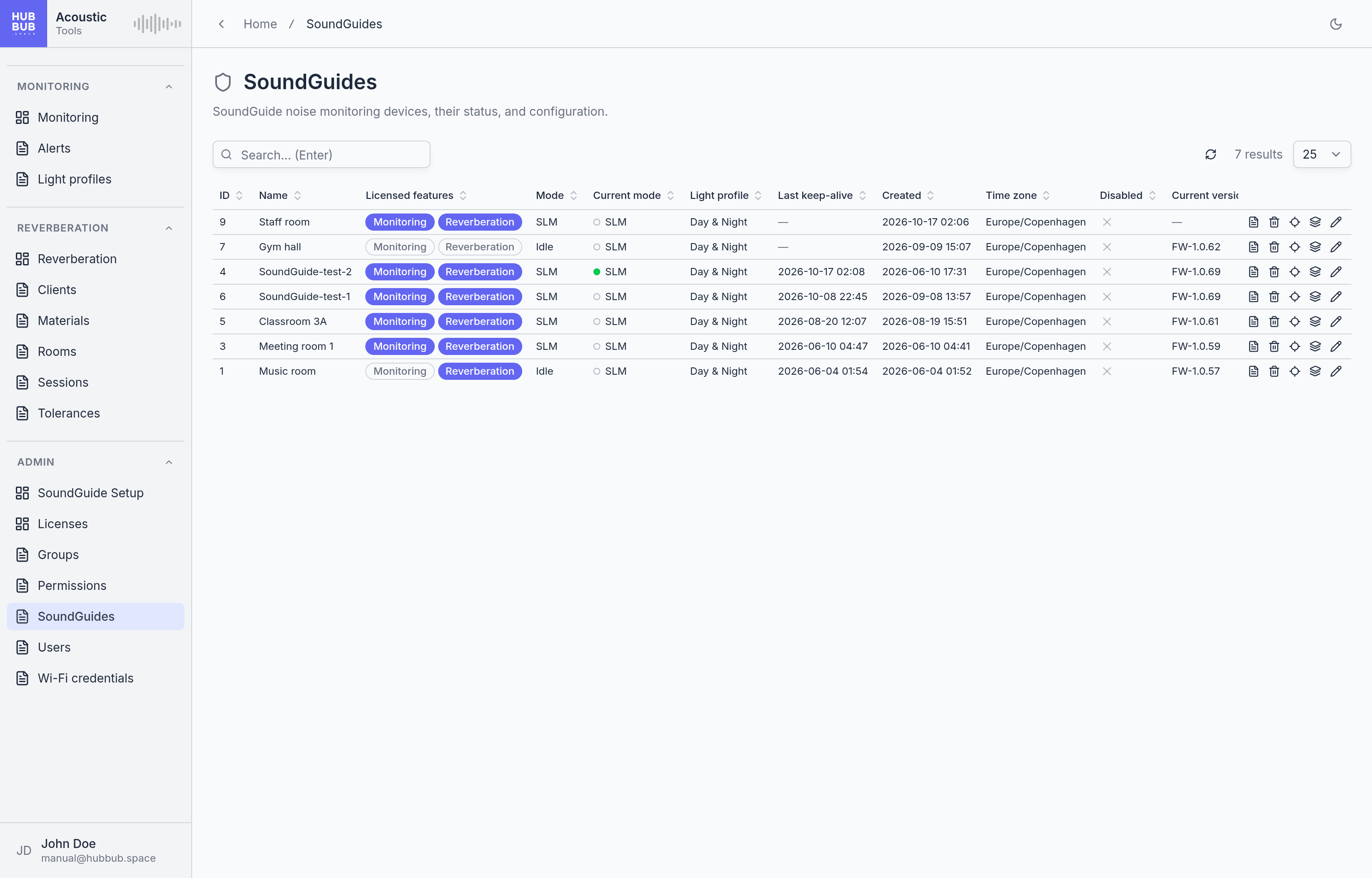
SoundGuides is a list page. A device appears here the moment it is registered during setup and stays as long as the organisation keeps it; there is no Create button, because a SoundGuide can only be added by connecting one. The page is for keeping the fleet in order: renaming a device when it moves, giving it a light profile and a time zone, taking it out of service, and finding it in a building.
The licence badges are the same as on the Licenses page and work the same way: a click grants or removes a licence on a device that is online. The row buttons are, from the left, the detail view, Disable, Locate, Related records, and the pencil.
Editing a device
- Click the pencil on the row.
- Change what needs changing and click Save. A setting reaches the device within seconds, at its next report.
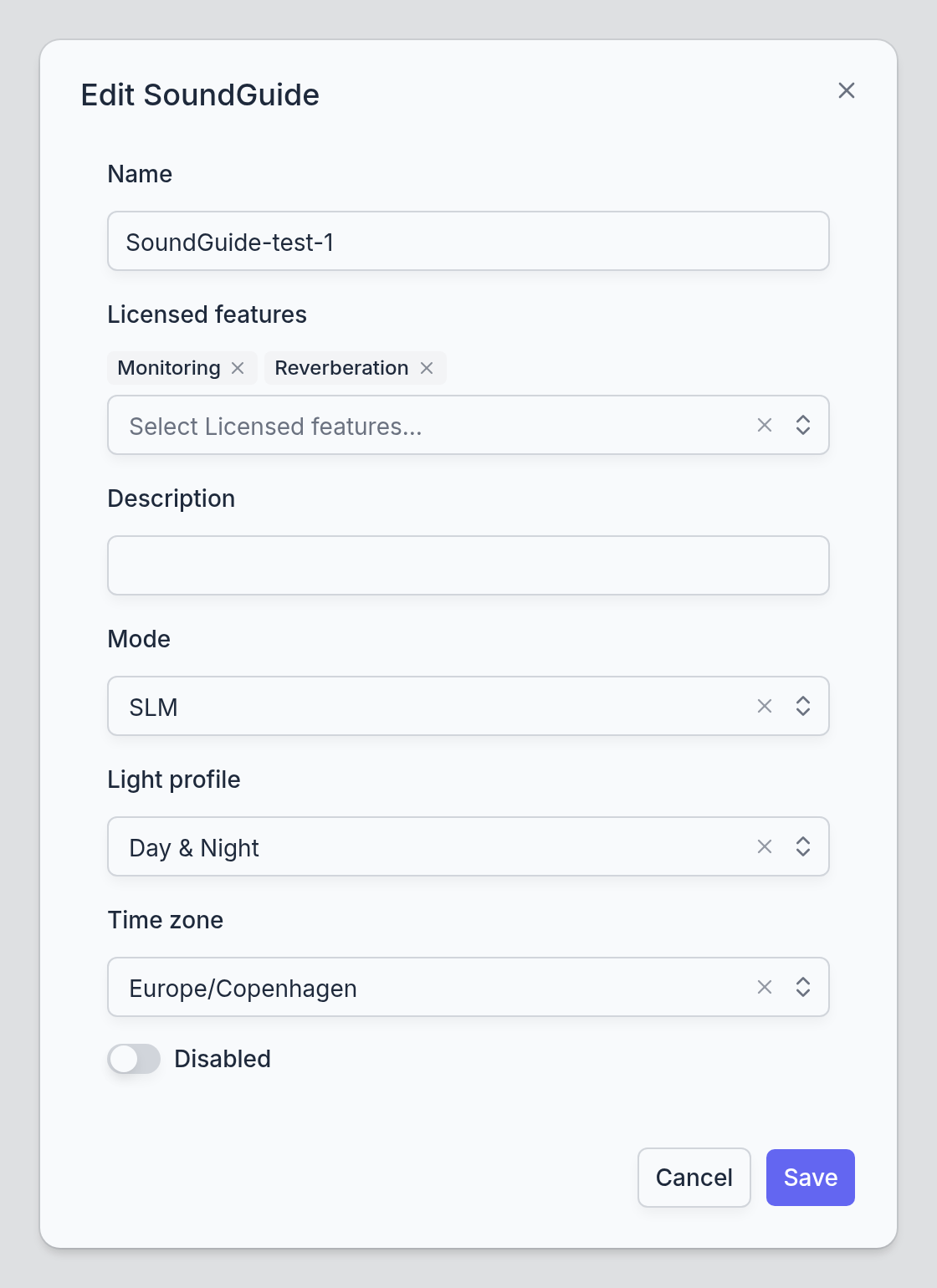
- Name
- How the device appears in widgets, alerts, and sessions. Unique within the organisation.
- Licensed features
- The licences the device holds; see Licenses. Here is where the licences of an offline device are changed, and where a licence is set aside for a device that has not connected yet.
- Description
- Optional. Where the device is mounted, or anything else worth remembering. Shown in the detail view only.
- Mode
- What the device should do: SLM, sound level monitoring, is the normal state of a licensed device; Idle stops measuring while keeping the device online. RT60 is set by the Reverberation page for the duration of a measurement and need not be chosen here. The mode follows the licences on its own: a device that gains a licence starts measuring, and one that loses the licence its mode needs drops to Idle.
- Light profile
- The light profile that sets the colours and the day and night schedule of the ring.
- Time zone
- The time zone the device stands in. It decides where the day boundaries of the Monitoring widgets fall, which clock the light profile's schedule follows, and the local time printed in alert e-mails. A device moved to another country needs this changed, nothing else.
- Disabled
- The same switch as the Disable button on the row; see below.
The columns
- Mode and Current mode
- Mode is what the device has been told to do; Current mode is what it reports doing, and the two can differ for the seconds it takes a change to arrive. The dot in front of the current mode is the status: green for measuring, blue for idle, hollow for offline, amber while the subscription is suspended.
- Last keep-alive
- When the device last reported in. It reports every twenty seconds, so a device is considered offline after five minutes of silence. The table is sorted by this column, most recent first; a device that has never connected shows a dash and sorts to the top.
- Created
- When the device was registered.
Disabling a device
The Disable button on a row, or the Disabled switch in the dialog, takes a device out of service without unplugging it: it stops measuring, its row is greyed, and it is marked disabled in the device choices on the Monitoring and Reverberation pages. Its licences stay with it and keep their seats, so a device that is retired for good should also have its licences removed. Enable puts it back to work at once. Disabling asks no confirmation; it is quick to undo.
Finding a device
The Locate button makes the device's ring blink white for fifteen seconds, over whatever it was showing. It starts at the device's next report, so within twenty seconds, and the blink is the only way to tell two identical devices apart without looking at their names.
Related records
The Related records button opens the data the device has produced: the alerts it has triggered, under Alert entry, its measurements at every resolution from single readings to days, and its reverberation Series. The measurements are the raw material of the Monitoring widgets, in table form; the widgets and the alerts are the places to look at them, and the tables are for checking a number or exporting one.
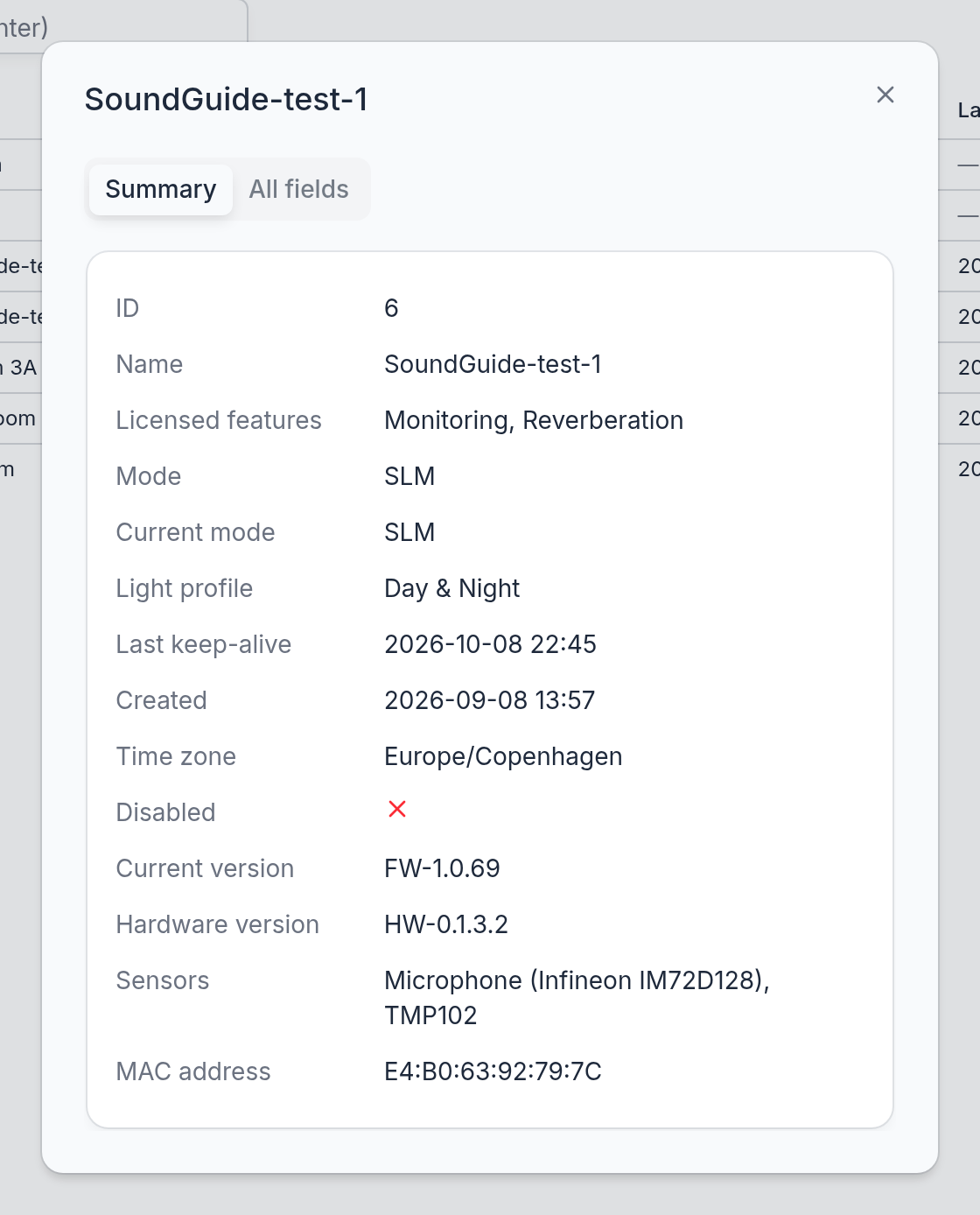
The detail view
The first button on a row opens the detail view: the device's settings and status, and what the device itself reports: its firmware version, its hardware version, its sensors, and its MAC address, which is its identity and what support will ask for.
Good to know
A device cannot be deleted, because its measurements belong to the organisation's history. A device that is gone for good is disabled and stripped of its licences; it then costs nothing and sits greyed in the list.
Users
The people who can log in to the dashboard: each with a name, an e-mail address that is also the login, and the group that decides what the person may see and do.
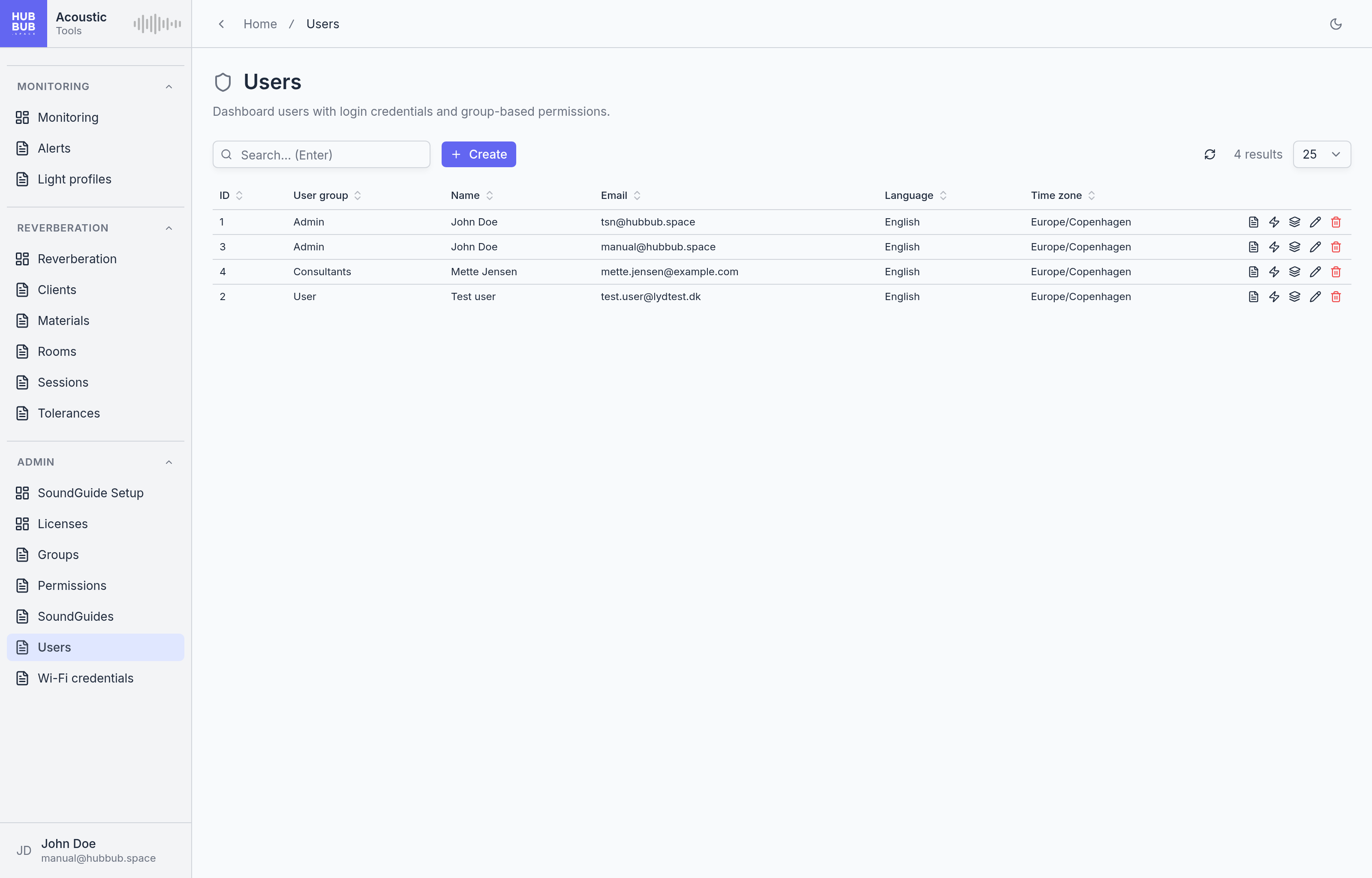
Users is a list page. A user logs in with the e-mail address and a password of the user's own choosing; the password is never visible here. What the user may do is set by the group alone. Everything else on the row is a preference the user can also change on the Account page: the language of the dashboard and the time zone in which times are shown.
Creating a user
- Click Create.
- Choose the User group, enter the Name and the Email, and click Create.
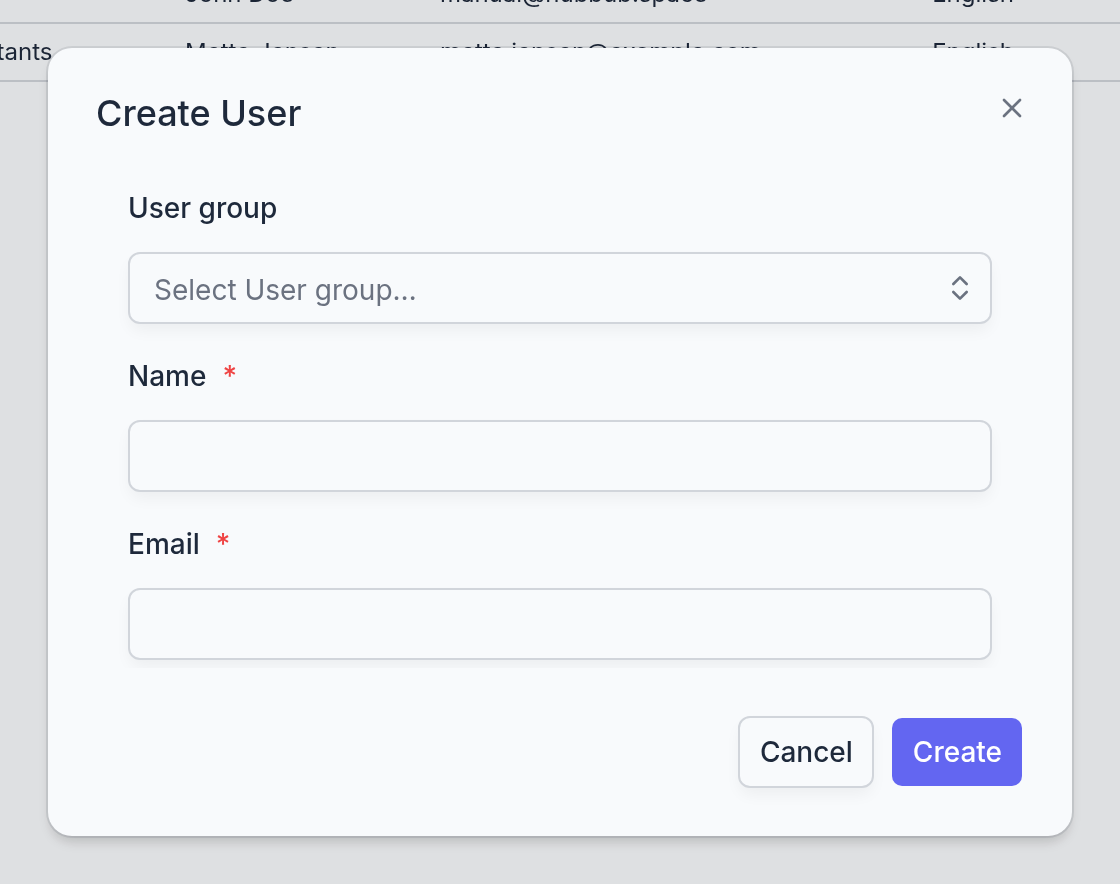
The new user receives an e-mail with a temporary password and the address of the dashboard, and is asked to choose a password at the first login. The language and the time zone of the organisation are applied to start with.
Editing a user
The pencil opens the same fields plus the user's Language and Time zone. Moving a user to another group takes effect at the user's next page load. Changing the e-mail address changes the login.
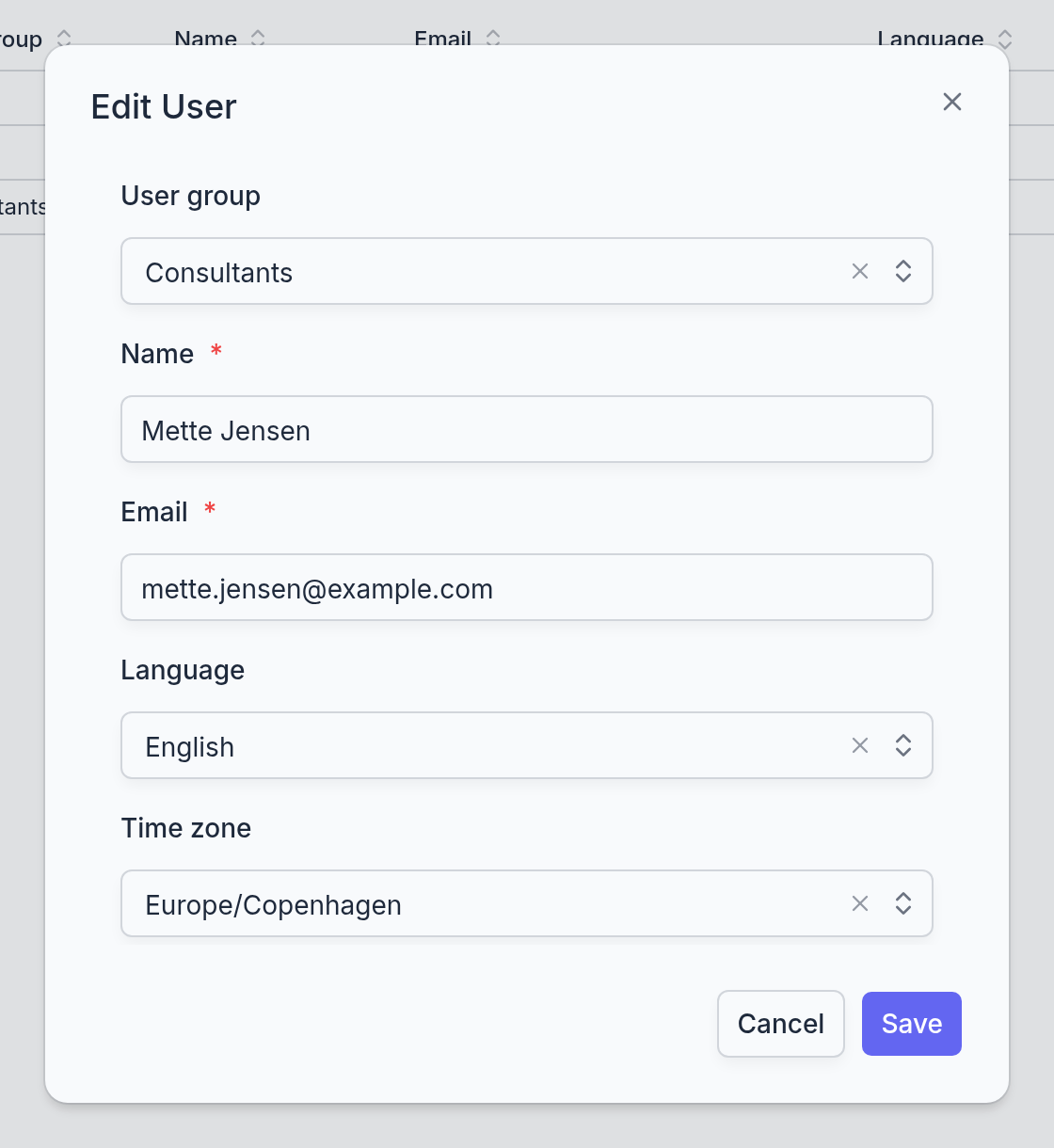
- User group
- The group whose permissions the user gets. A user without a group cannot do anything.
- Name
- Required. Shown in the sidebar footer and wherever the user is named.
- Required and unique in the organisation. The login name, and where the temporary password and alert e-mails go. Case does not matter.
- Language
- The language of the dashboard for this user.
- Time zone
- The time zone in which this user sees times in tables and dialogs. Devices have a time zone of their own, on the SoundGuides page, which governs their day boundaries; this one only governs the display.
Resetting a password
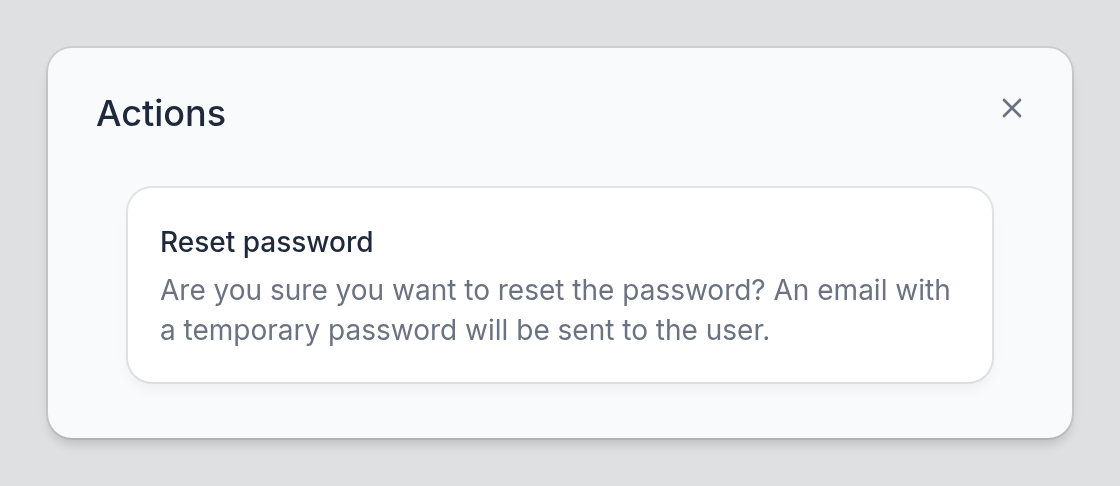
The Actions button on a row, the lightning bolt, offers Reset password: after a confirmation the user receives a new temporary password by e-mail and chooses a new one at the next login. The old password stops working at once. A user who has merely forgotten the password does not need this; the login page has its own Forgot password flow that sends the same e-mail.
Removing a user
The delete button on a row removes the user's access at once, but keeps the row, greyed, so that the name stays attached to what the user did. The Actions button on a greyed row offers Undelete, which restores the access with the same password. Deleting a greyed user again removes the row for good.
Good to know
Everything on this page needs Manage on Users, which only the Admin group has to begin with. A group given Show on Users sees the list and the detail view but can neither create, change, nor remove anyone.
The temporary password arrives from a no-reply address. If it does not arrive, the spam folder is the first place to look; the Reset password action sends a fresh one.
Ten wrong passwords lock the login for ten minutes. The lock lifts by itself; there is nothing to do here.
Wi-Fi credentials
The Wi-Fi networks the organisation's SoundGuides use, with their passwords, so that setting up the next device on a known network needs no typing.
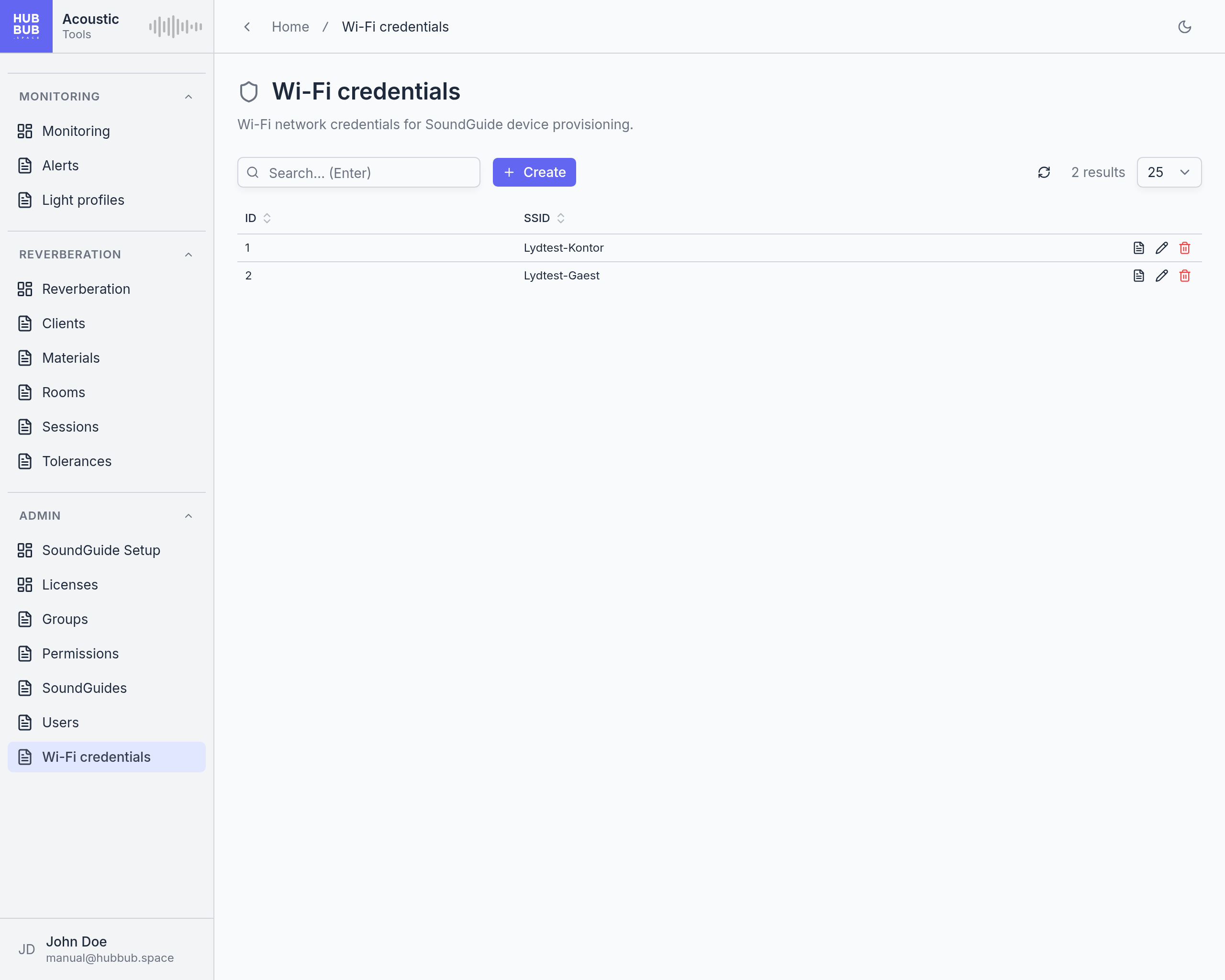
Wi-Fi credentials is a list page. Each row is one network: its name and its password, stored encrypted. The rows are mostly written by the SoundGuide Setup page, which saves the password after every successful provisioning unless Remember the Wi-Fi password for this network was unticked, and reads them back: a saved network is marked saved in the network list there, and choosing it fills in the password.
The page is for the rest: entering a network ahead of time, correcting a password that has changed on the router, and removing networks that are no longer used. A device already set up is not affected by any of this; it keeps the password it was given until it is provisioned again.
Adding or changing a network
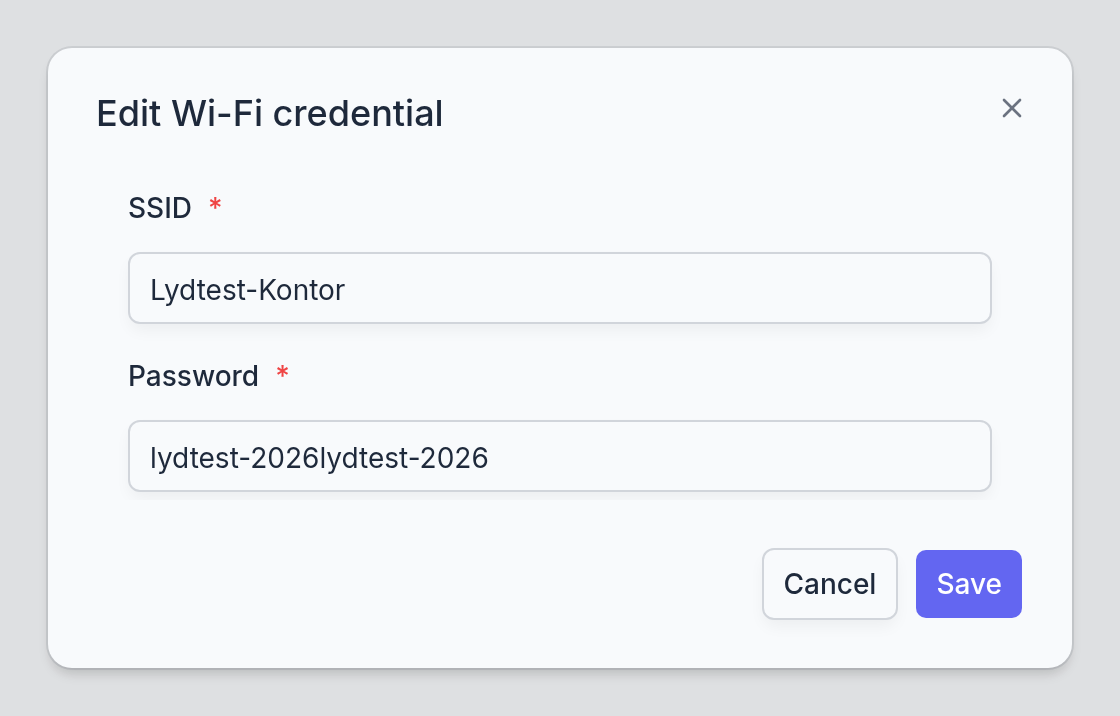
- Click Create, or the pencil on a row.
- Enter the SSID and the Password, and click Save.
- SSID
- Required. The network name exactly as the router broadcasts it, including case. Each network can be saved once.
- Password
- Required. The network's password. It is shown in clear in the dialog and in the detail view, so that it can be checked and copied.
Good to know
Anyone who can manage this page can read the passwords. By default that is the Admin group only; a group given Show on Wi-Fi credentials sees the network names and, in the detail view, the passwords too. Keep the page out of groups that should not have them.
When the Wi-Fi password changes, update it here first, then connect each device to SoundGuide Setup and provision it again; the new password is filled in as soon as the network is chosen.
Working with lists
The controls shared by every list page of the dashboard: the toolbar above the table and the buttons at the end of each row.
Most menu items open a list page: a table of records of one kind, such as alerts, rooms, or users, with the same controls everywhere. Monitoring, Reverberation, SoundGuide Setup, and Licenses are built pages with their own layout and get their own chapters; the rest work as described here.

- Search
- Type and press Enter to keep only the rows that contain the text; Escape clears it.
- Create
- Opens a dialog with the fields of a new record. Shown only to groups that may manage this kind of record.
- Refresh, results, page size
- Reload the table, see how many rows match, and choose how many to show per page. Page through long lists with the arrows below the table.
- Column headers
- Click a header to sort by that column, click again to reverse. Hover over a cut-off value to read all of it.
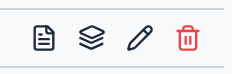
- View details
- A read-only card of the record, with a Summary tab of the table columns and an All fields tab of everything.
- Related records
- Records that belong to this one, such as the breaches of an alert or the rooms of a client, one tab per kind, each a full list of its own. Not every kind of record has it.
- Edit
- Opens the same dialog as Create, filled in.
- Delete
- Asks for confirmation first. Some kinds of record are only marked as deleted the first time and can be restored; the dialog says so when that is the case. A greyed row is one that is deleted or switched off.
Some rows carry extra buttons for actions specific to that kind of record; the chapters describe them where they occur. Which lists are visible, and whether records in them can be created, edited, or deleted, depends on the user's group permissions.